

Overview
A pass’s Availability tab decides where it can be used, which customers can use it, and at what times. Together with its Use priority, these settings decide which of a customer’s passes is used when they check in — and whether they can check in at all.How to access
Open a pass from Inventory → Passes and go to the Availability tab.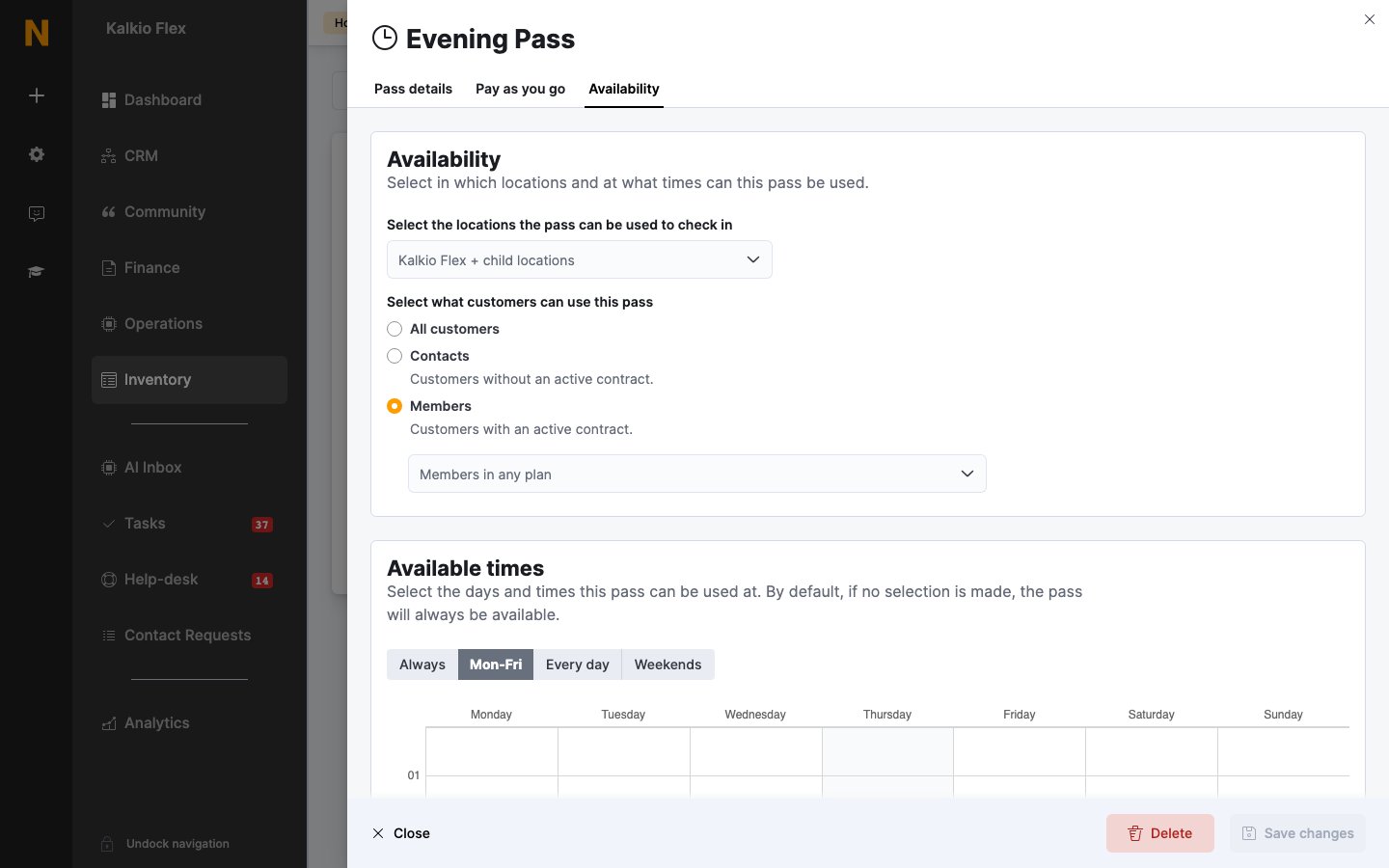
Locations
Under Select the locations the pass can be used to check in, leave the field empty to allow the pass at its own location and every location below it in your network — shown as <location> + child locations. Select specific locations to allow it only there. If the pass’s location belongs to a network, a callout offers Make pass available across <network>. This moves the pass to the network location so it can be used at every location in the network.Customers
Under Select what customers can use this pass, choose:- All customers — anyone holding the pass.
- Contacts — customers without an active contract.
- Members — customers with an active contract. Optionally pick plans, so only members on those plans can use it.
Available times
By default, a pass can be used at any time. To limit it, choose Mon-Fri, Every day, or Weekends and draw the times on the weekly grid, or Always to clear the limits.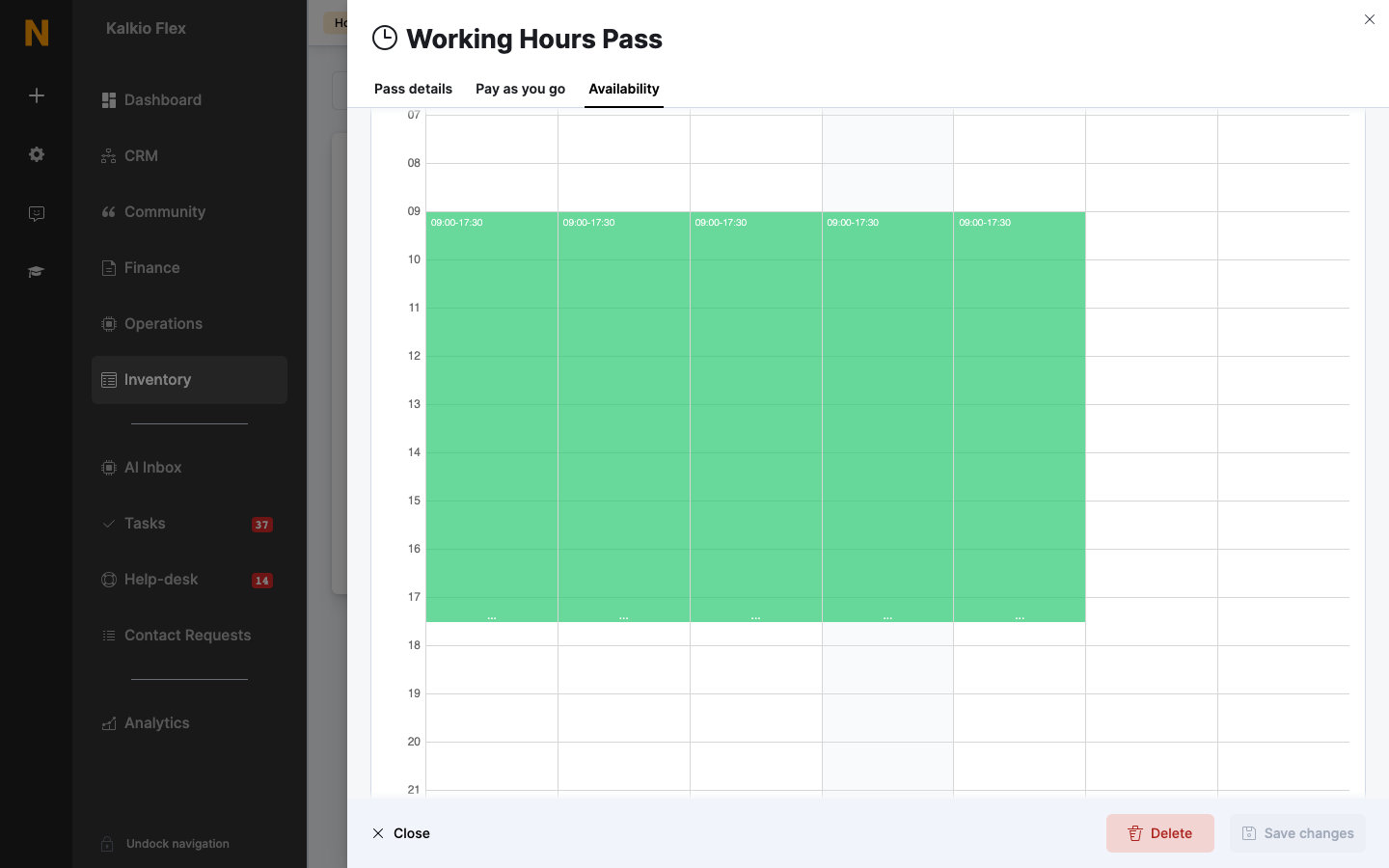
Which pass is used
When a customer checks in, Nexudus looks for a pass that’s valid at that location, for that customer, at that time, and that still has time left or hasn’t been used. A day pass already used earlier the same day can be used again. If several passes are valid, the one with the highest Use priority (set on the Pass details tab) is used first. Between passes with the same priority, Nexudus prefers a pass already used today, then passes limited to particular locations or plans, then the cheapest. See How a pass is chosen for the full order. If no pass is valid, the check-in fails — unless pay as you go is set up, in which case a pay-as-you-go pass is used.Day passes and time-based passes at check-in
- Day pass — marked as used when the customer checks in. They can check in and out as often as they like until the daily cut-off time set in Settings → Features → Check-in settings.
- Time-based pass — the time spent checked in is taken off the pass when the customer checks out. Check-in and check-out times are rounded to the nearest 15 minutes. If the pass runs out while they’re on site, they’re checked out and Nexudus tries another pass.
Related
- Passes — creating and managing passes
- Pay as you go — charging customers without a pass
- Check-ins — failed check-ins, plan limits, and automatic check-out