Overview
A pass only lets a customer check in once it’s on their account. There are three ways to get it there:
Customers who check in without a pass can also be given one automatically through pay as you go.
How many to include
For a day pass, the amount is the number of days. For a time-based pass, each pass already holds its minutes — so to give 10 hours with a 10-hour pass, set the amount to 1.In a plan
Open the plan from Inventory → Plans, go to Benefits → Passes, and click Add pass. Choose the Pass and Amount, then choose when the passes expire and are replaced under These passes expire…: Every week, Every calendar month, Every time the contract is invoiced, or Every year.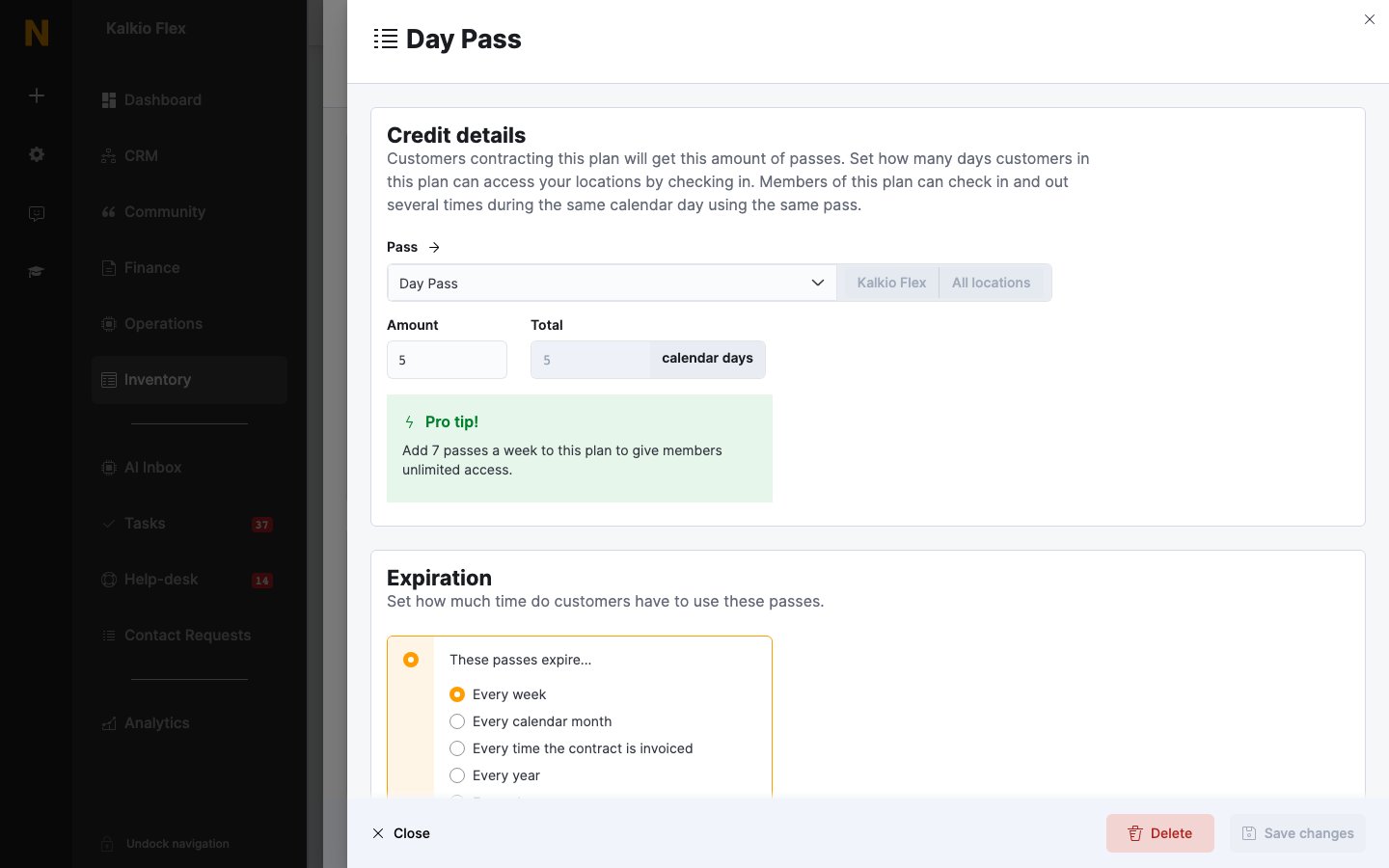
In a product
Open the product from Inventory → Products, go to Benefits → Passes, and click Add pass. Choose the Pass and Amount, then choose whether This credit never expires. or This credit expires after: a set period. Customers get the passes when they buy the product; only future sales include passes you add later.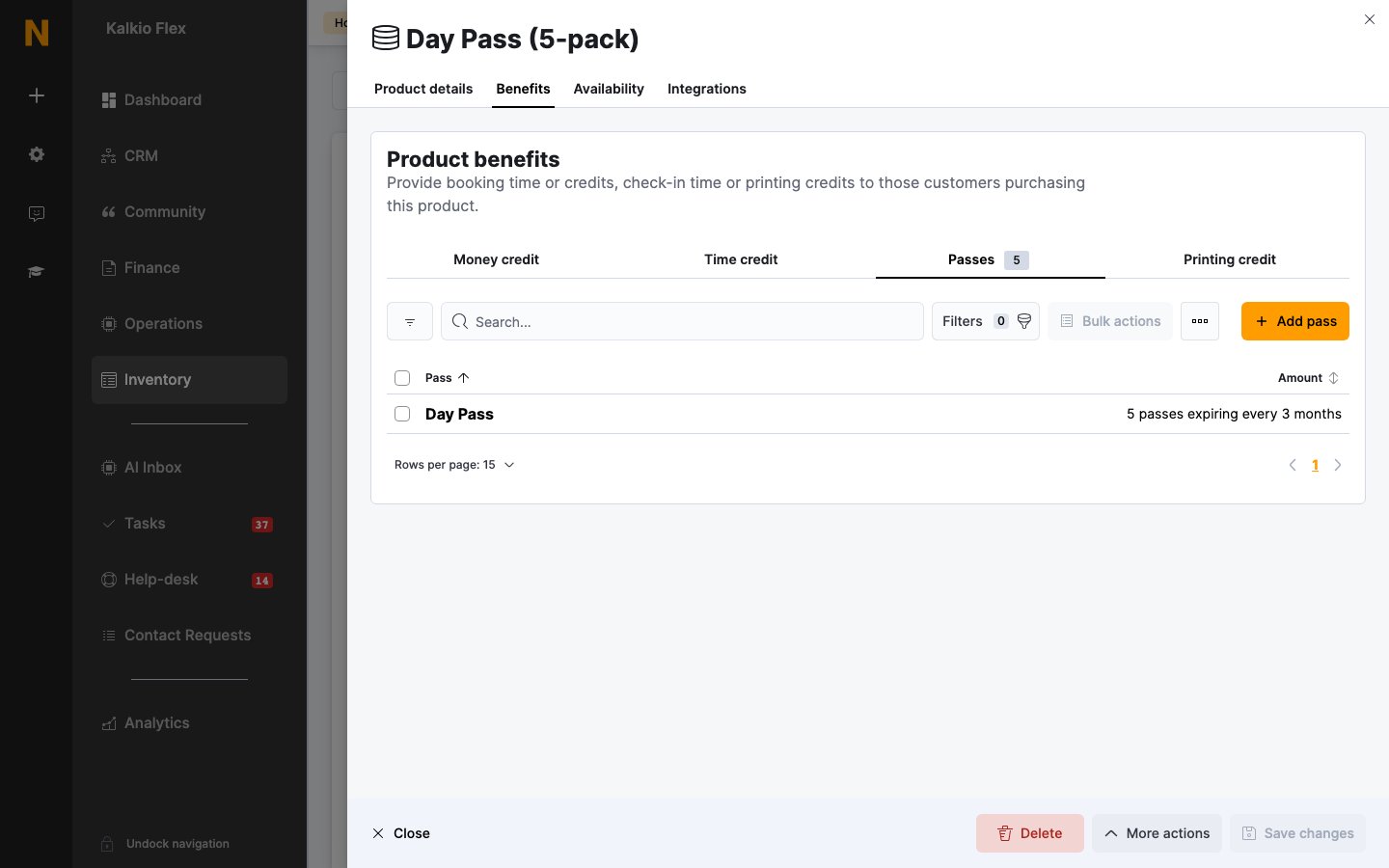
Directly to a customer
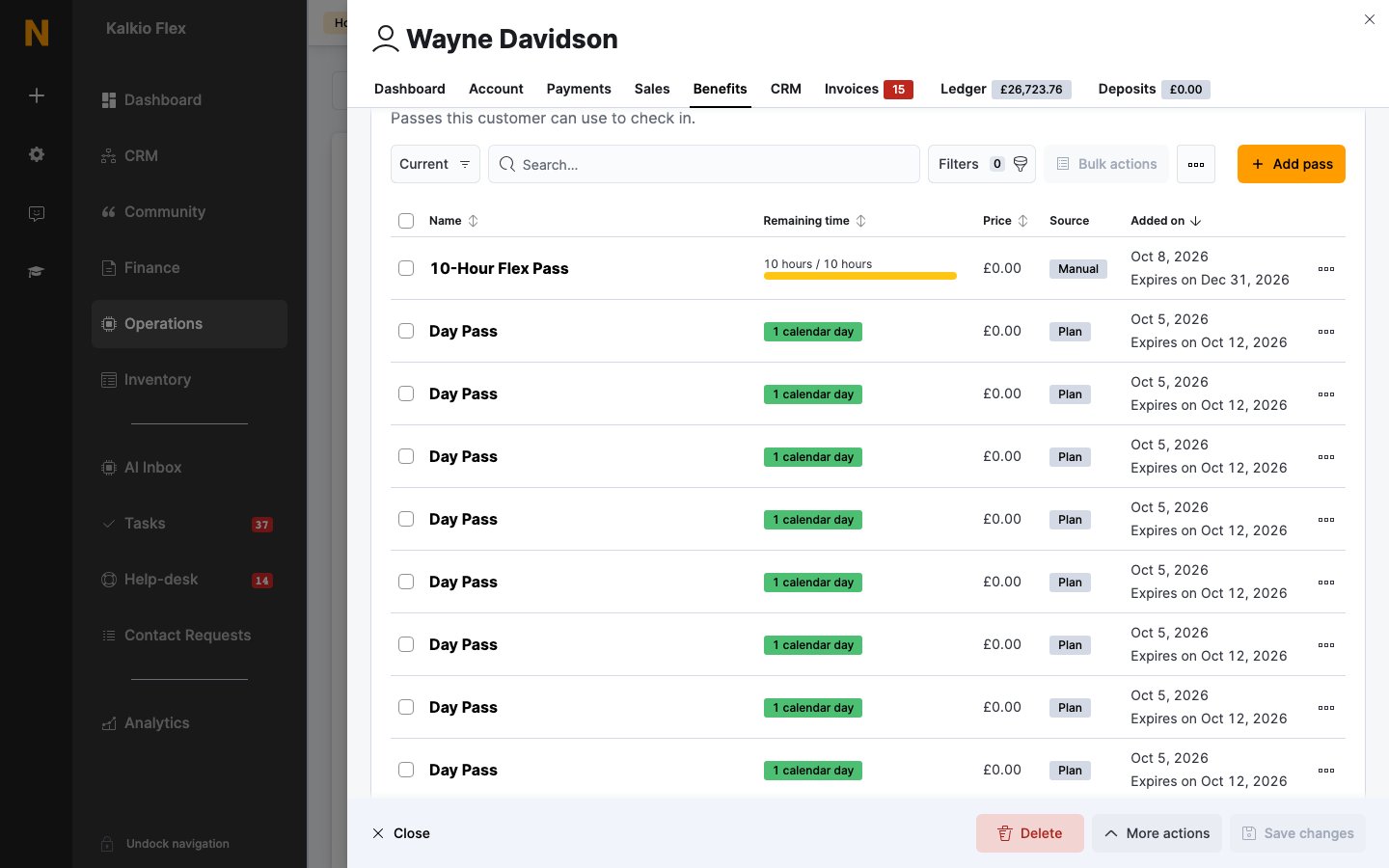
Open the customer from Operations → Members & contacts, go to Benefits → Passes, and click Add pass. Choose the Pass type, an optional Expires on date, and private Notes. Under Price & quantity, set the Quantity and Unit price — leave the price at zero to give the passes for free; otherwise they’re added to the customer’s next invoice. The customer’s Passes list shows each pass’s Remaining time (or 1 calendar day for day passes), with badges for passes that are Used or In use, the Price, its Source (Plan, Product, or Manual), when it was Added on, and when it expires.