

What are AI Conversations?
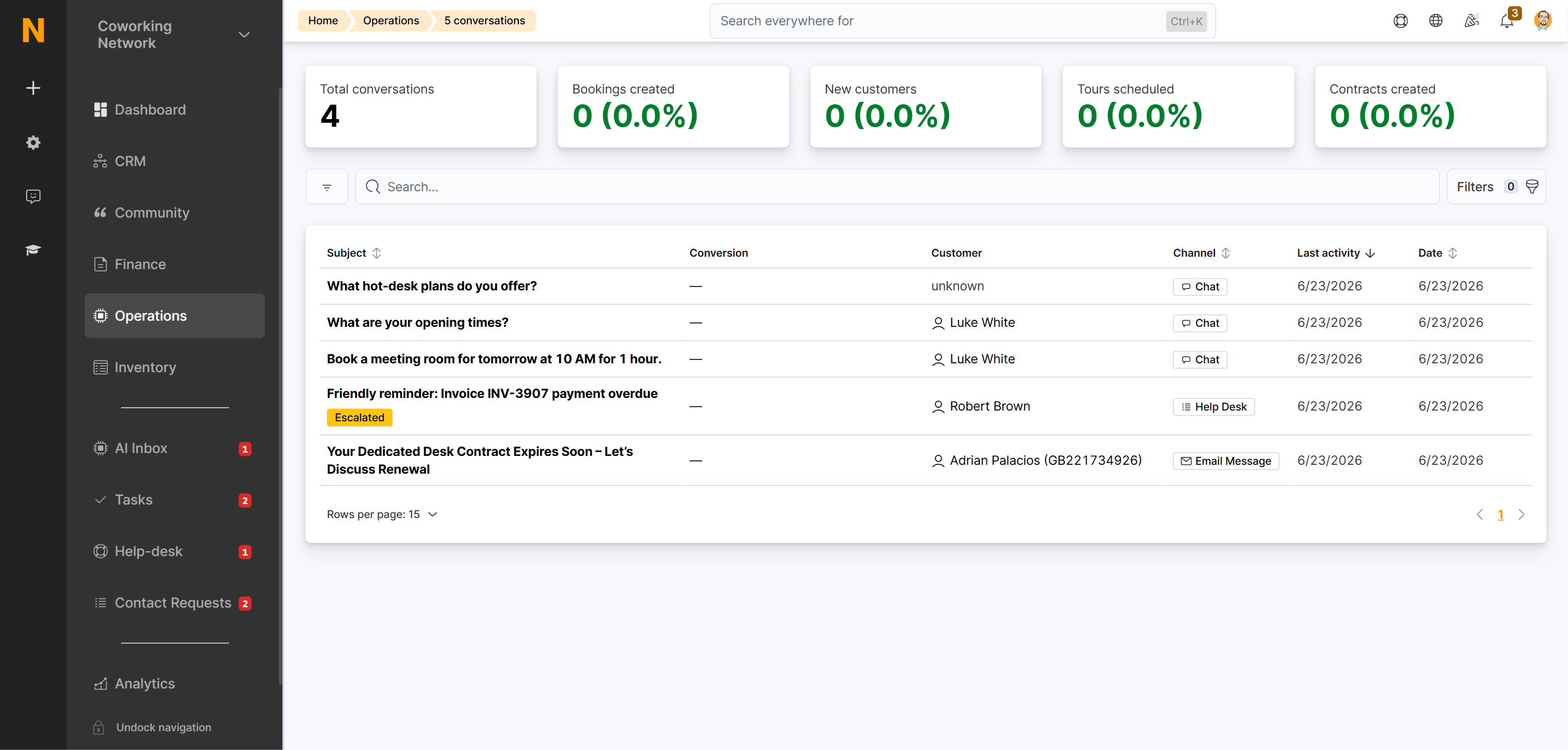
AI Conversations is your workspace for viewing all conversations between your customers and the AI assistant. Each conversation includes the full message history, customer information, and any conversions (tours, bookings, new customers, or contracts) that resulted from the interaction. Conversations can start from:- A proactive outbound message from the AI Inbox
- An inbound chat in the Members Portal
- A customer reply to an AI email, WhatsApp message, or voice call
- An operator message sent via operator takeover
How to Access
- In the Dashboard navigation, go to Operations → AI Assistant → AI Conversations.
- Or use the direct link.
Conversion Metrics
At the top of the page, you’ll see five key metrics showing what your AI conversations have achieved:
These metrics update automatically and help you measure the ROI of your AI assistant.
Understanding the Interface
Conversation List View
The main list shows one row per conversation. Each row displays:Channel Filters
Quick filter tabs at the top let you view conversations by channel:Conversion Badges
Each conversation row shows color-coded badges for any conversions:
Click any badge to jump directly to the related record.
The Conversation Timeline
Click any conversation from the list to open the detail view. The timeline shows every message in chronological order.Message Types and Indicators
Each message shows which channel was used and who sent it:
Each message is clickable — if it links to a CoworkerMessage or HelpDeskMessage, clicking the message takes you to the source entity.
Conversation Context
At the top of the conversation detail, you’ll see:- Channel badge — Chat, Email (AI), WhatsApp, Email Message, or Help Desk
- Customer avatar — Links to the customer profile if the conversation is linked to a customer
- External identifier — For unauthenticated conversations, shows the email address or phone number used
Linked AI Inbox Items
If the conversation originated from or resulted in a proposed action in the AI Inbox, you’ll see a blue callout showing:- Number of linked actions — How many AI Inbox items are connected
- Action status — Pending, Approved, Rejected, Expired, Auto-executed, or Snoozed
- Link to inbox item — Click to jump to the proposed action in the AI Inbox
Escalated Tickets
If the conversation was escalated to the help desk, you’ll see a warning callout with:- Ticket subject — The help desk message subject
- Link to ticket — Click to view the full help desk ticket
Reading Messages
Messages appear in chronological order with user messages on the left and AI/operator messages indented.Message Content
- Plain text messages — Displayed as-is
- HTML messages — Rendered with proper formatting for emails
- Markdown messages — Converted from HTML with tables, lists, and emphasis preserved
Timestamps
Each message shows a relative timestamp (e.g., “15 minutes ago”). Hover over the timestamp to see the exact date and time.Searching and Filtering
Use the search bar to find conversations by:- Customer name — Search for a specific customer
- Subject — Search conversation titles or first messages
- External identifier — Search by email address or phone number
Use Cases
Use Case 1: Tracking Conversion Performance
Scenario: You want to see how many tours were scheduled through AI conversations this month. Flow:- Go to AI Conversations
- Look at the Tours scheduled metric at the top
- Click any conversation with a 🎫 Tour badge to see the full conversation
- Follow the link to the tour booking to see booking details
Use Case 2: Reviewing Escalated Conversations
Scenario: Your support team escalated several AI conversations to help desk. You want to see what triggered the escalations. Flow:- Go to AI Conversations
- Look for conversations with a warning badge labeled Escalated
- Open each conversation to see the full timeline
- Review what the customer asked that required human intervention
- Use this feedback to improve AI training or agent thresholds
Use Case 3: Finding a Customer’s AI Interaction History
Scenario: A customer mentions they already spoke to the AI assistant about booking a room. You want to find that conversation. Flow:- Go to AI Conversations
- Type the customer name in the search bar
- Review the list of conversations for that customer
- Open the relevant conversation to see what was discussed
- Click any conversion badges to see what bookings were made
Use Case 4: Measuring WhatsApp Engagement
Scenario: You recently enabled WhatsApp and want to see how customers are using it. Flow:- Go to AI Conversations
- Click the WhatsApp filter tab
- Review the total conversations count
- Check conversion badges to see what actions resulted from WhatsApp conversations
- Compare conversion rates with other channels
Limitations
- No editing: Conversations are read-only. You cannot edit or delete messages.
- No manual replies: To continue a conversation, use the AI Inbox to send a follow-up proposed action, or link the conversation to a help desk ticket or CoworkerMessage.
- No status management: Conversations don’t have “Active,” “Resolved,” or “Archived” statuses. All conversations remain visible.
- No assignment: You cannot assign conversations to specific team members from this page.
Permissions
Administrators have all these roles by default.
Related Documentation
Operator Takeover
Send your own messages through different channels
AI Inbox
Review and approve proposed actions from proactive agents
Help Desk
Using the help desk system for support tickets
Email Accounts
Configure connected email accounts for reply tracking