

Overview
Rates set what customers pay to book your resources. Rates belong to resource types, not individual resources, so every resource of a type shares the same rates. A type can have several rates — for example an hourly rate and a day rate, or a cheaper rate for members.How to access
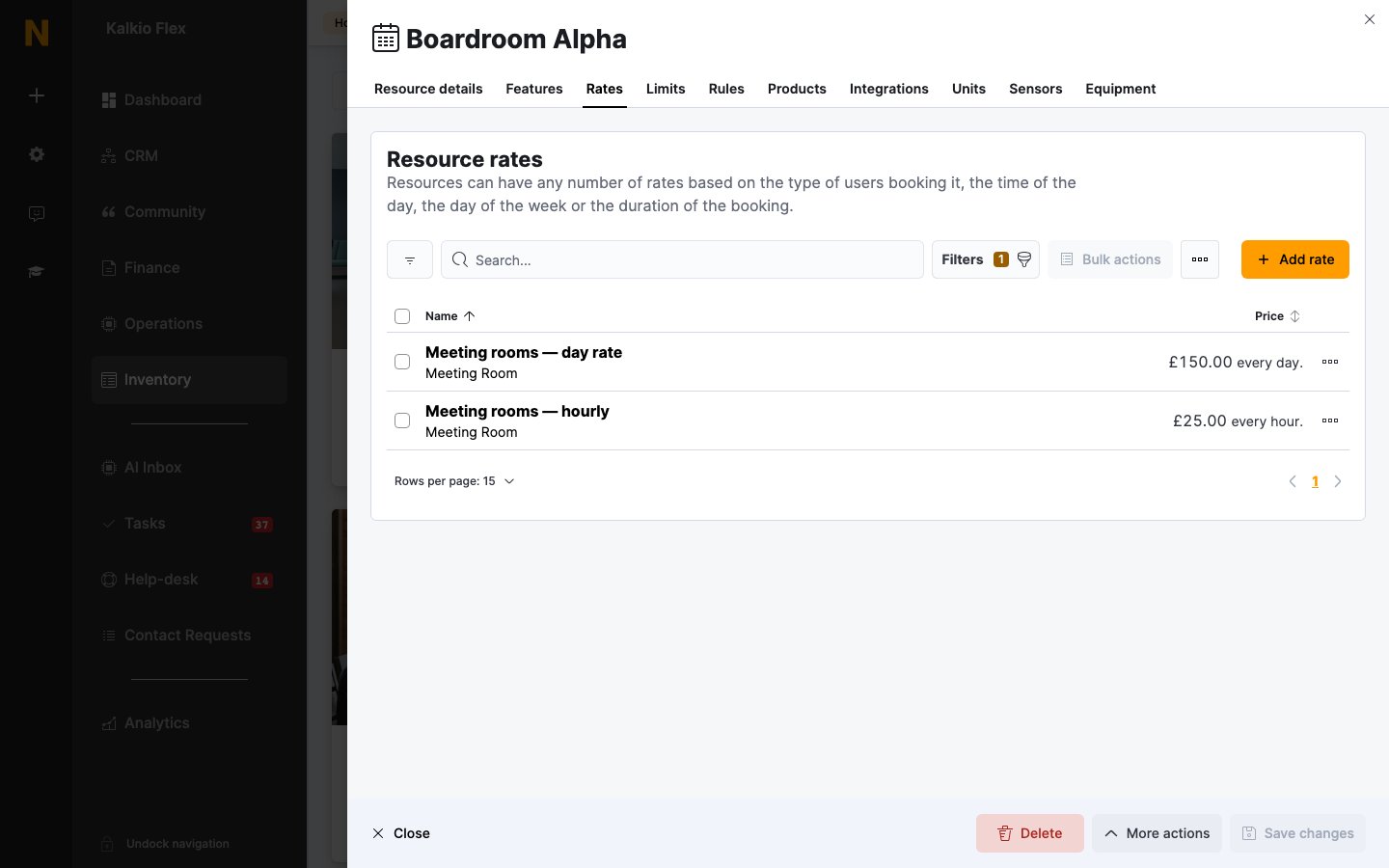
Go to Inventory → Resources → Prices to see every rate, or open a resource and go to its Rates tab to see the rates for its type. Adding a rate from a resource adds it to that resource’s type.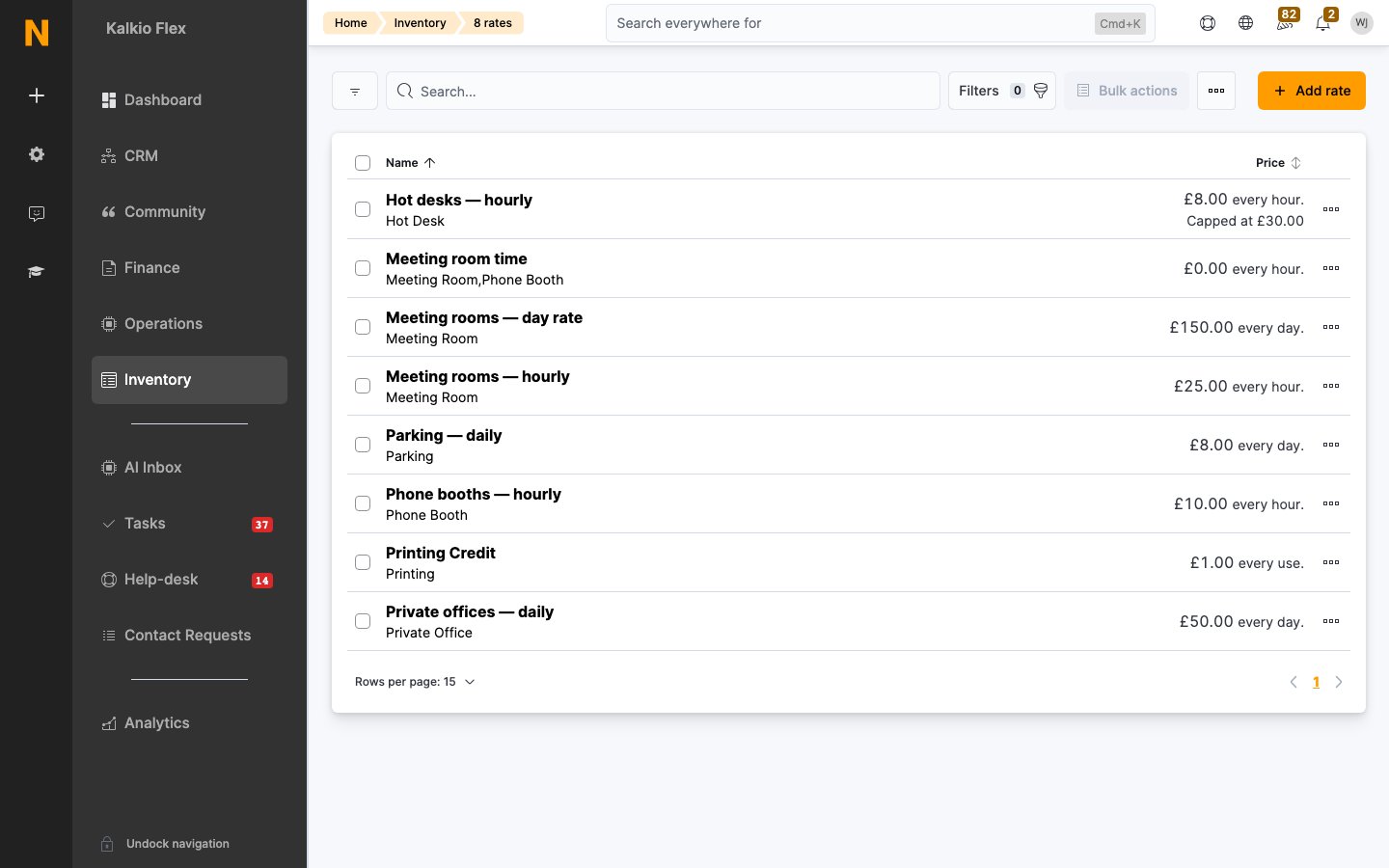
Time credit and printing credit types are also listed here, because they’re set up the same way. They don’t charge for bookings.
Creating a rate
Select Add rate. A rate has five tabs: Rate details, Advanced, Credits, Limits, and Dynamic pricing.Rate details
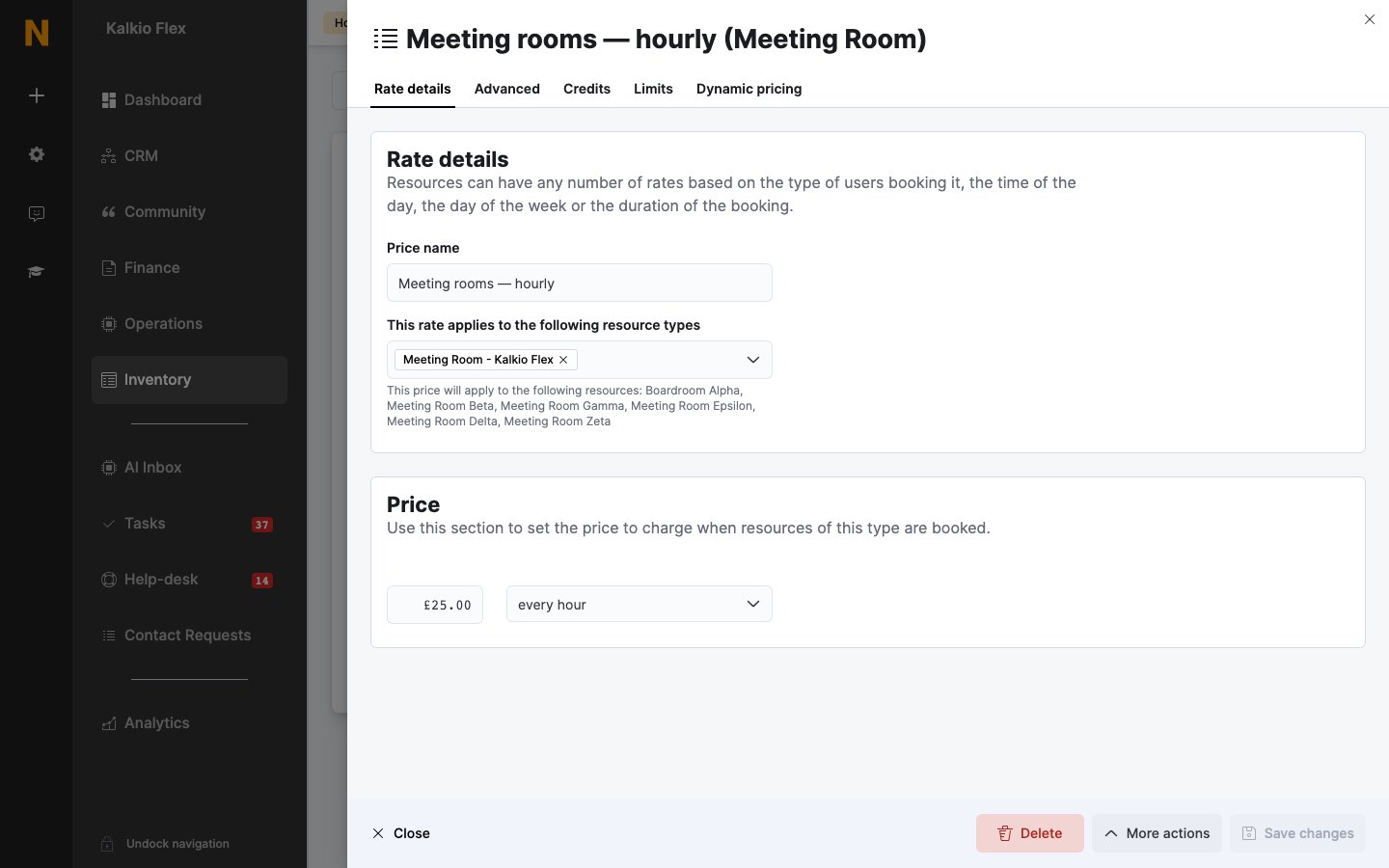
Below these, set the rate’s tax rate and financial account, as for products.
Advanced
Credits
If customers pay with money credit, choose whether they’re charged the regular rate in credits (1 credit = 1 unit of your currency) or a different number of credits per charge period — for example 20 credits per hour.Limits
Dynamic pricing
Adjusts the rate’s price by a percentage when demand is high, average or low, and for last-minute bookings. Select Get started on the tab to set it up. See Dynamic pricing.How Nexudus chooses a rate
When a resource is booked, Nexudus finds every rate for its type that applies to the customer, the booking’s times, and its length. It then:- Works out the booking’s price once for each charge period you have rates for — hourly, daily and so on — and charges the cheapest.
- Within a charge period, prices the booking in steps. Hourly rates are applied in 15-minute steps, so a booking that runs from peak into off-peak hours can use a different rate for each part. At each step, a rate set to always use wins; otherwise the cheapest applies.
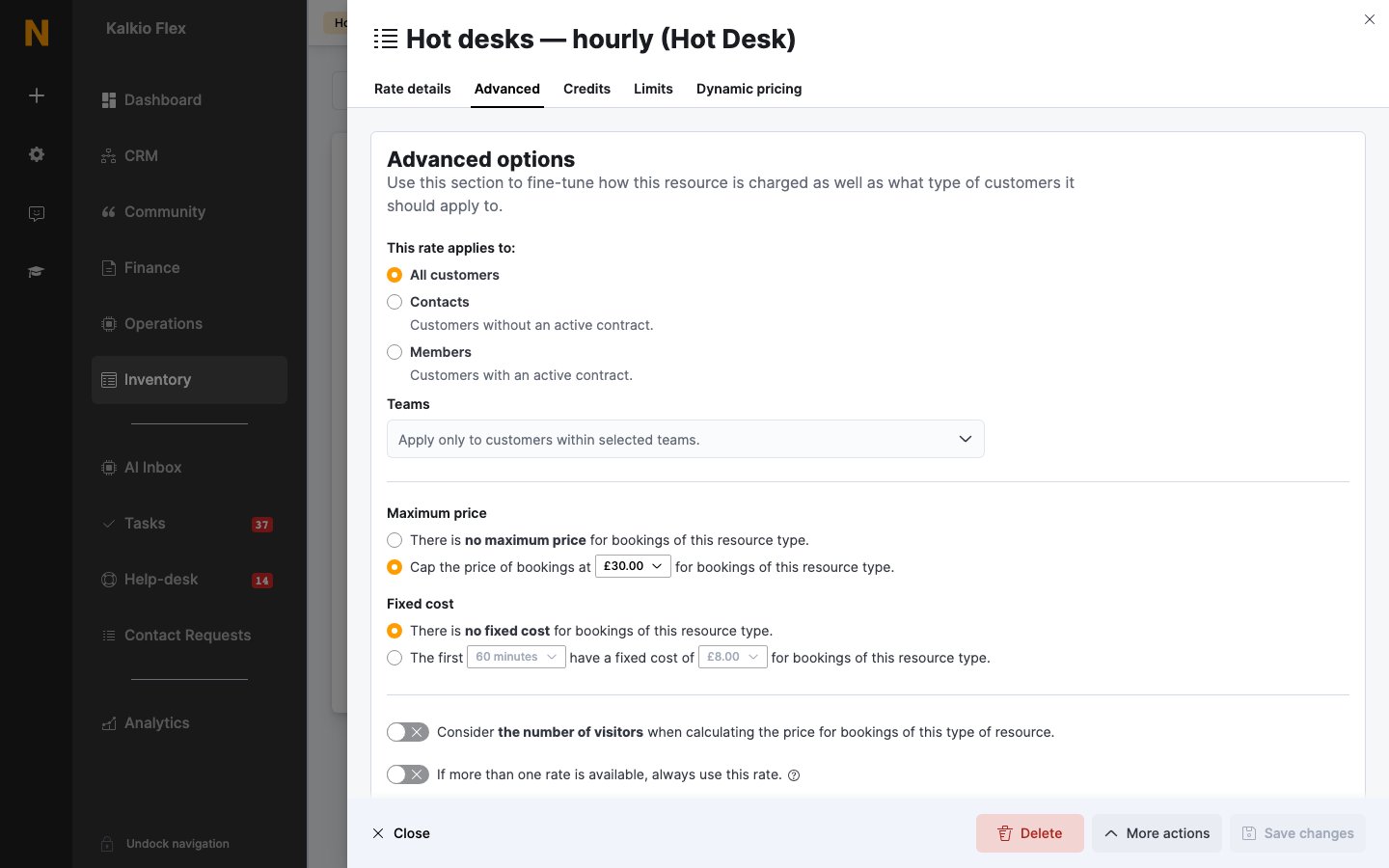
- Applies any Fixed cost, dynamic pricing, and Maximum price set on the rate.
Common setups
Hourly, capped at a day rate
Customers pay by the hour for short bookings, but never more than your day rate. Either:- Give the hourly rate a Maximum price — for example £25 an hour, capped at £150. Bookings of 6 hours or more cost £150.
- Or add a separate rate charged every day at £150. Because Nexudus charges the cheaper of the hourly and daily price, a 7-hour booking costs £150 rather than £175.
Members pay less
Create a second rate for the same type with a lower price and, on the Advanced tab, set This rate applies to: to Members — on all plans or chosen ones. Because Nexudus uses the cheapest rate that applies, members automatically pay the lower price.Off-peak and weekend prices
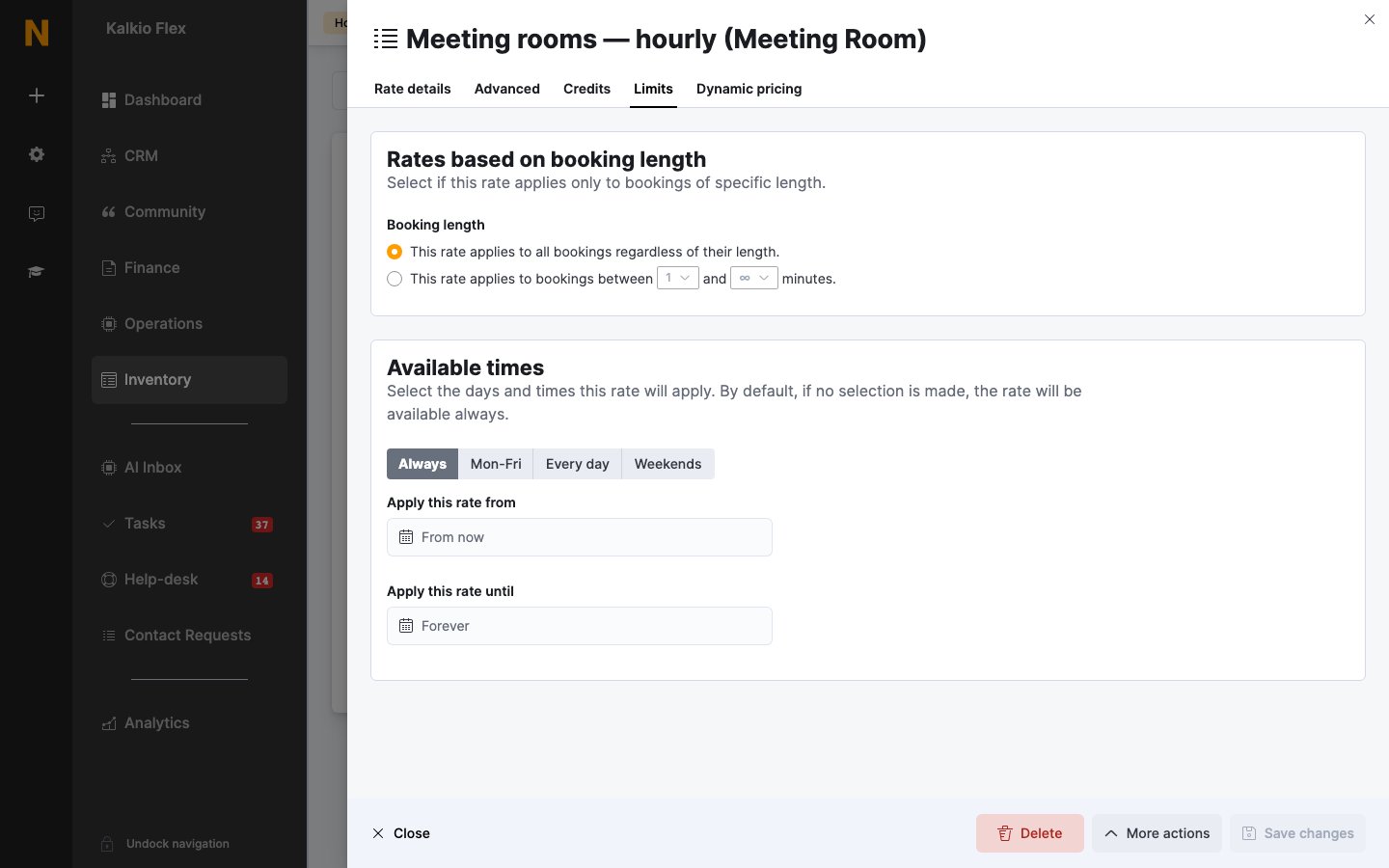
Create a rate with a lower price and, on the Limits tab, set its Available times to evenings or weekends. Hourly bookings that run into those times are charged the off-peak price for that part.Seasonal prices
Create a rate with Apply this rate from and Apply this rate until set to the season’s dates. Outside those dates, your normal rates apply.Related
- Resource types — the groups rates apply to
- Booking pricing and credit — how a booking’s price is worked out
- Credits — time and money credit customers spend on bookings
- Discount codes — promotional discounts on bookings