

Overview
The Limits tab on a resource sets the booking rules that apply to everyone: opening days and times, capacity, how far in advance and how late customers can book or cancel, how long bookings can be, who can book, which other resources it blocks, and gaps between bookings. Limits apply to bookings customers make in the Members Portal and app. Admins can override them when booking on a customer’s behalf.How to access
Go to Inventory → Resources, open the resource and open the Limits tab. Each section opens separately; change what you need and select Save changes.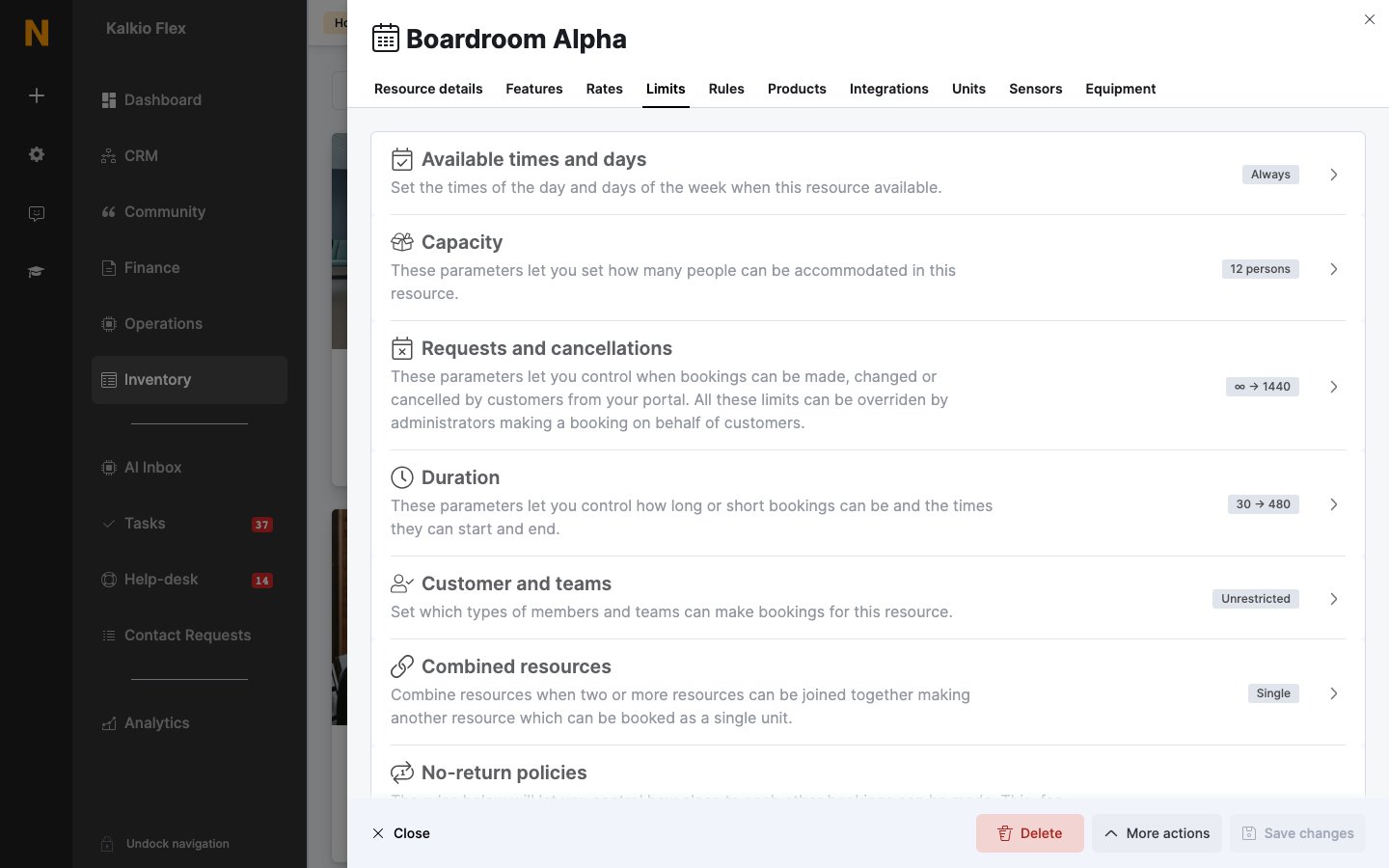
Available times and days
When the resource can be booked. Resources are available at any time by default. Restrict them to set days of the week and times, for example weekdays 08:00–18:00.Closures and unavailability periods
To stop customers booking during holidays, renovations or other closures, while still letting them book before and after, add an availability exception. Exceptions are set for your location, not on the resource itself.- Go to Settings → General settings → General settings → Opening times. Exceptions are listed under Booking availability exceptions.
- Select Add availability exception.
- Choose the Location and the Resources. Leave Resources empty to block all of them.
- Set the Start / end times. Make sure the times cover the whole closure, not just the dates.
- Enter the Message customers see if they try to book in that period.
- Turn on This exception is active. For a closure that happens every year, also turn on Apply this exception every year (e.g. 25th December).
- Save.
Exceptions created in a network location apply to every location in the network. If a location has its own exceptions as well, the location’s exceptions take precedence.
Capacity
Requests and cancellations
Late cancellation fees
To charge customers who cancel at the last minute:1
Create a fee product
Go to Inventory → Products and add a product named as you want the fee to appear on invoices, such as “Late cancellation fee”. Leave its price at zero; the amount is set on the resource. Add a financial account and tax rate if your invoicing needs them. You can reuse one fee product for all your resources.
2
Turn on the fee
On the resource’s Limits → Requests and cancellations, under Late cancellations, choose to charge a cancellation fee and set how close to the start it applies.
3
Set the amount
Choose the fee Product, then the Type: Absolute for a fixed Cancellation fee amount, or Percentage for a Cancellation fee percentage of the booking’s cost.
4
Save
Select Save changes.
Duration
Customer and teams
Combined resources
This resource locks other resources when booked lists the resources that become unavailable whenever this one is booked. Use it for rooms that can be joined together. See Combined resources.No-return policies
Gaps you require between bookings, for example to clean or reset a room. Choose one option in each group:
For example, allow a 10-minute gap when the same customer books the room twice in a row, but require 60 minutes between different customers so staff can reset it.
The admin booking calendar shows the gaps as shaded buffers around each booking. Customers who try to book inside a gap see a message explaining why.