

Overview
Every customer record is organised into tabs, and the Account tab is split into sections. This page describes what each one holds. The tabs you see depend on the modules turned on for your location and on your admin role.How to access
Go to Operations → Members & contacts and select a customer.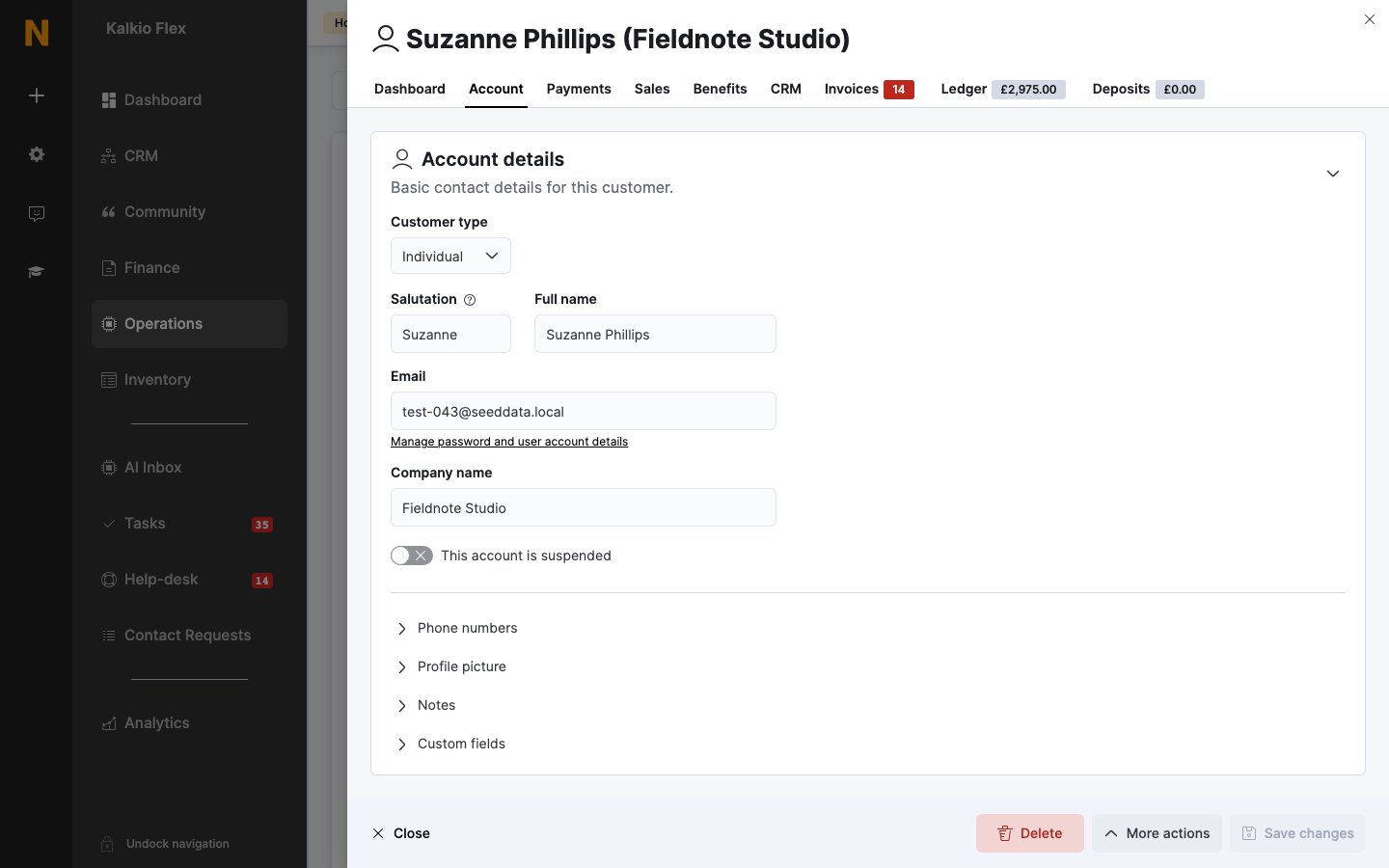
Dashboard tab
A summary of the customer’s activity:- Figures such as total revenue, total sales, unpaid invoices and money credit.
- Charts of revenue, booked time and hours on site for the customer and their team, and how their spending splits between plans, bookings and other items.
- Plan changes, such as joining, upgrading, downgrading or cancelling a plan.
- Recent events, such as check-ins, booking requests, invoices, payments and help-desk messages.
Account tab
Account details
If a customer was registered without a valid email address, you see a warning instead of the Email field. Select Assign email to add one. You need to add an email before you can give them portal access or send them anything.
Locations
Teams
The teams the customer belongs to. See Teams.Contact and billing
Custom fields
Any custom fields you’ve added for customers, in their own sections.Professional profile
What the customer does, shown in the Members Portal directory if you publish it:Attendance
The days the customer is expected on site, from Monday to Sunday. Use the buttons to fill in the whole week, such as Fully on-site, Fully remote (home), Fully remote (abroad) or Not working. It’s used for occupancy planning and reporting.Demographics
Gender and Date of birth. The date of birth is used for birthday messages.Identifiers
Notifications
Which emails the customer gets:- Send new invoices automatically by email
- Send payment receipts automatically by email
- Send a notification by email on failed payment attempts
- Notify this customer when a delivery is received for any member of their teams
- Send an email notification about new deliveries to this email address, to send delivery notifications to another address.
Access rights
What the customer can do in the portal and on site:
Access details:
If the customer has no portal access, the booking, product, event and community permissions are turned off. The section shows a No online access warning and a Grant online access button. Customers with access have a Revoke online access button instead.
Integrations & Services
Settings for printing and other connected services, such as Free unlimited printing and Unrestricted user in PaperCut for PaperCut, printing through Ezeep or Ezeep Blue, and Send customer to Square customer list.Payments tab
When GoCardless or Stripe BACS is on for a customer, Nexudus only collects their payments that way. See Customer payment methods.