How escalation works
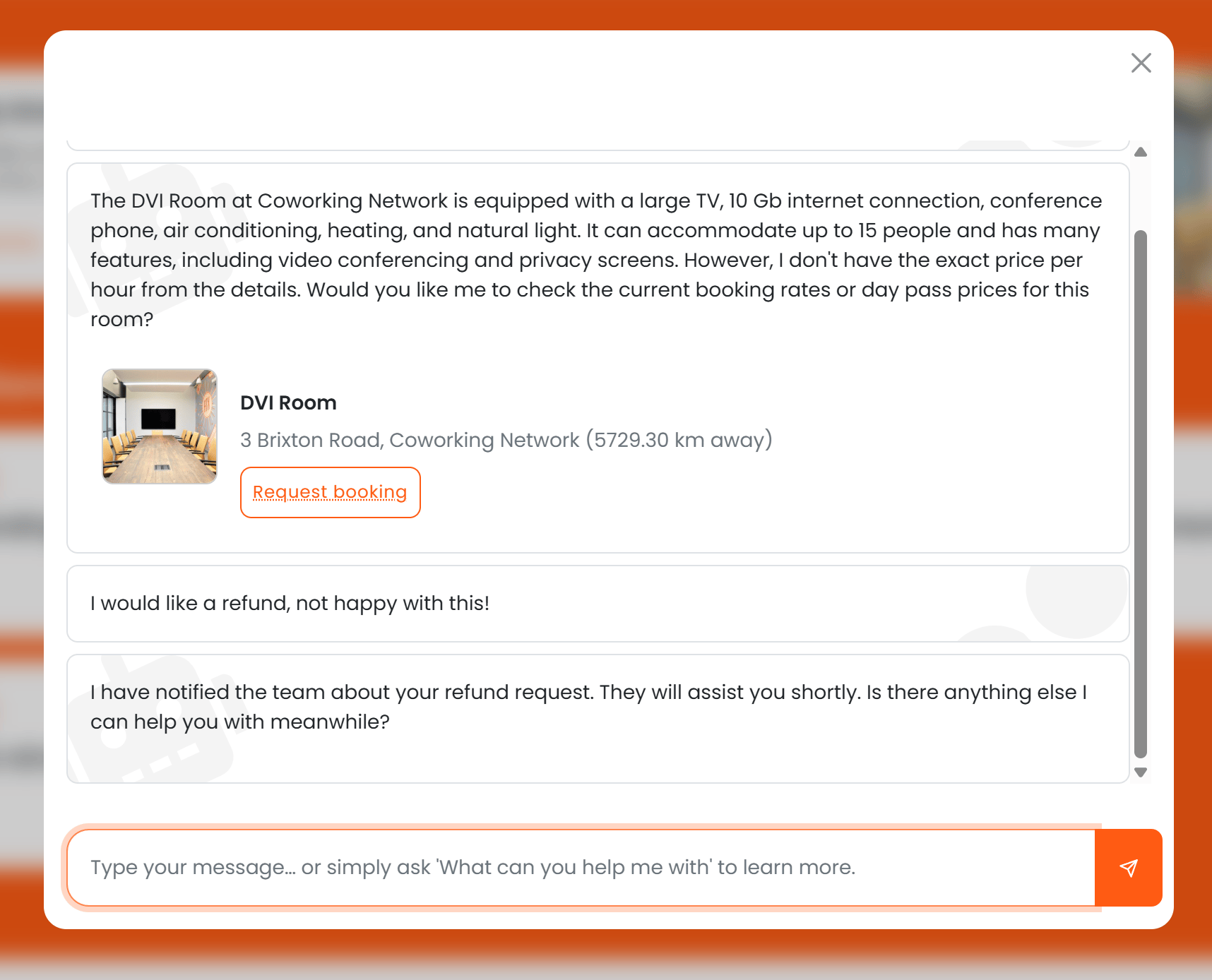
Escalation is opt-in for location operators. When enabled, the AI monitors conversations for signals that human help is needed:- The user explicitly asks to speak to a person (“I need to talk to someone”, “this isn’t working”, “help desk”)
- The AI determines the question is outside its knowledge or capabilities
- The AI encounters a technical issue it cannot resolve
- Summarises the user’s issue in its own words
- Creates a Help Desk ticket in Nexudus with the conversation context
- Informs the user that their request has been passed to the team and provides an estimated response time (if configured)
Configuration
Escalation settings are found under Settings > AI Assistants (preview) > Channels > AI escalation in your location settings.Enable AI escalation to human support
Toggle this on to allow the AI to create help desk tickets when it needs to escalate. When disabled, the AI will respond with a message that it cannot connect the user to a human agent.- Default: Enabled
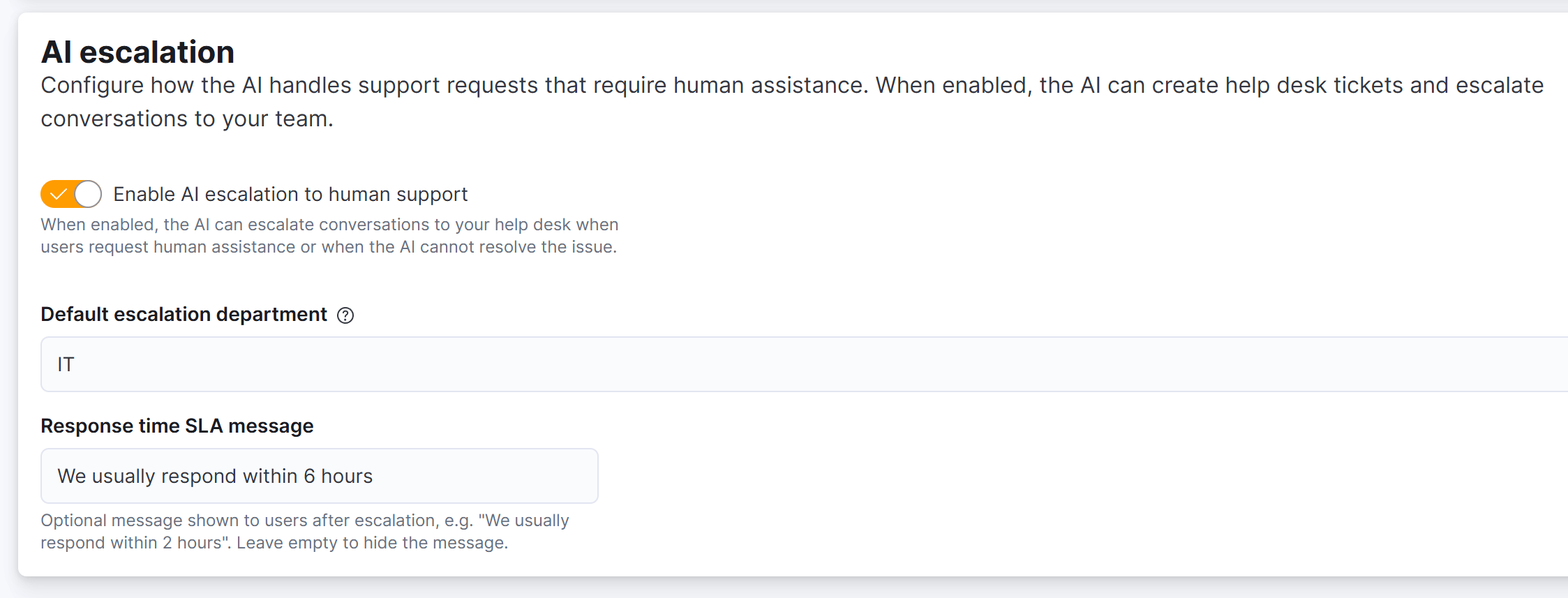
Default escalation department
Select the Help Desk department where escalation tickets are created by default. If left empty, the system default department is used. This lets you route AI escalations to a specific team — for example, a “Technical Support” department or your general “Help Desk” team.Response time SLA message
An optional message shown to users after escalation, such as “We usually respond within 2 hours.” This sets expectations and reduces follow-up messages. Leave empty to hide the response time message entirely.What the help desk ticket contains
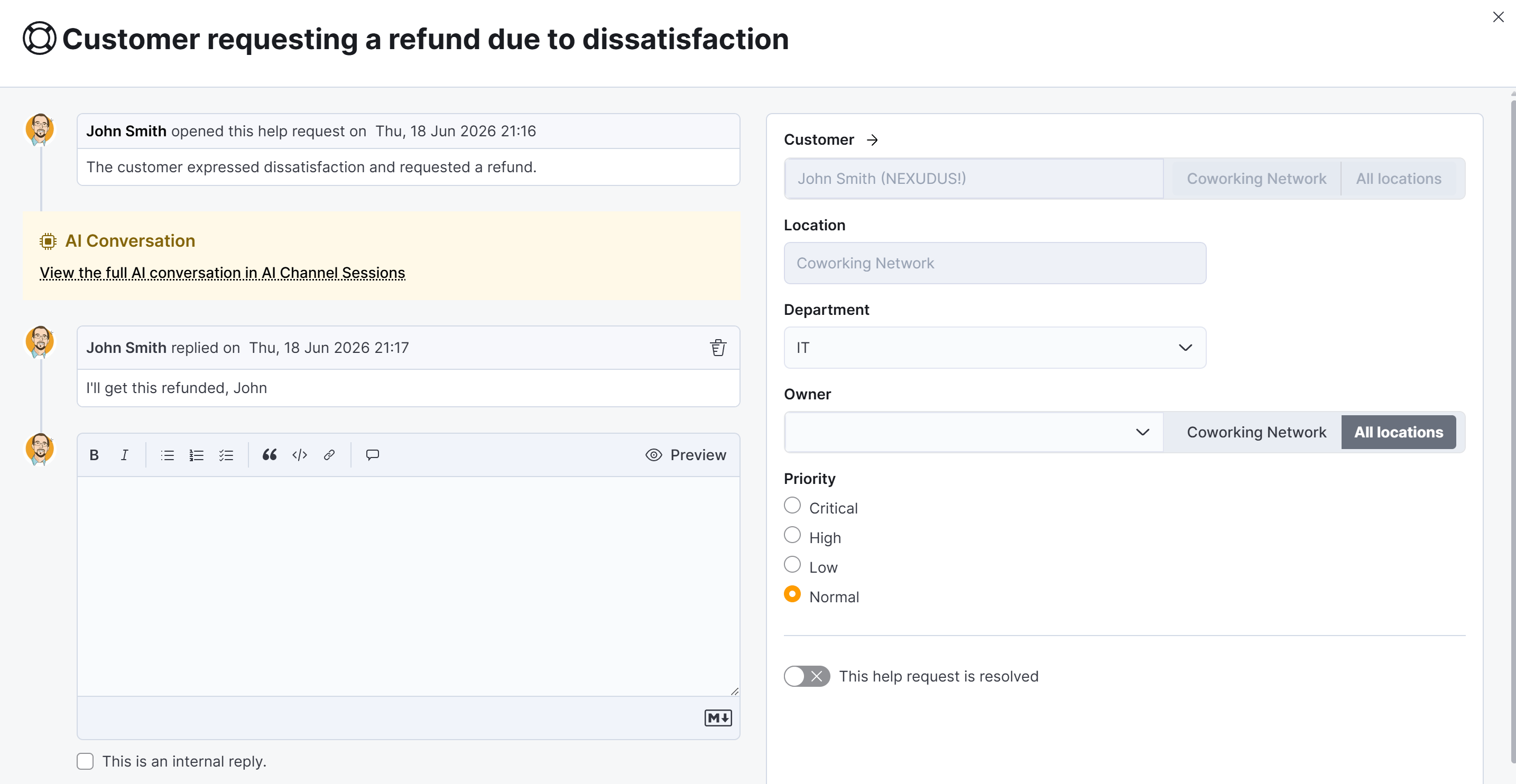
When the AI creates an escalation ticket, it includes:- Subject: A concise summary of the user’s issue
- Message text: The AI’s summary of the conversation, channel, and session details
- Link to conversation: A direct link to the full AI conversation in AI Channel Sessions
- Priority: Normal by default, or High if the user appeared frustrated or the issue was time-sensitive
The full conversation transcript is stored in the AI Channel Sessions interface, not in the ticket itself. This avoids duplication since the session already contains all the OpenAI messages. Your team clicks the link in the ticket to access the complete conversation history.
Department matching
The AI can optionally suggest a department based on the conversation content. It uses a fuzzy match against department names:
If a match is found, the AI includes it as a hint when creating the ticket. Your configured default escalation department is still used as the final destination.
Conversation history
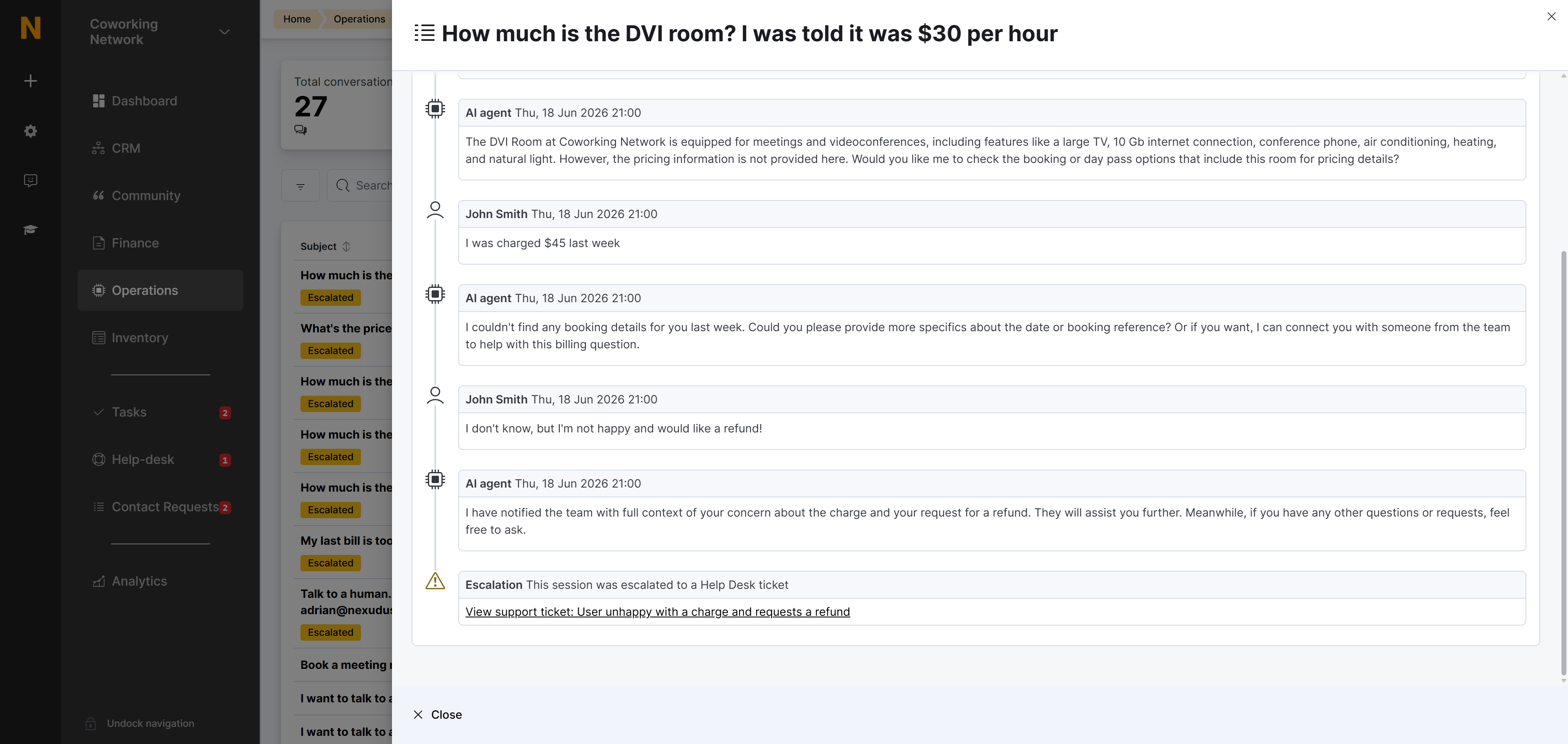
Escalated conversations appear in the AI Conversations list with a “Escalated” badge (orange colour). The conversation record includes:- A timeline entry showing when the escalation occurred
- A direct link to the created Help Desk ticket for quick access
- The complete conversation history accessible in the Conversation section
Bidirectional links
The escalation creates a permanent two-way connection between the AI conversation and the Help Desk ticket: In the AI Conversations view:- A “Escalated to Help Desk” callout appears at the top of the conversation, with a link to the support ticket
- A timeline entry at the bottom of the conversation shows the escalation event and links to the ticket
- A “AI Conversation” callout appears at the top of the ticket, with a link to the full AI session
- This lets your team quickly jump back to the complete conversation history when responding to the ticket