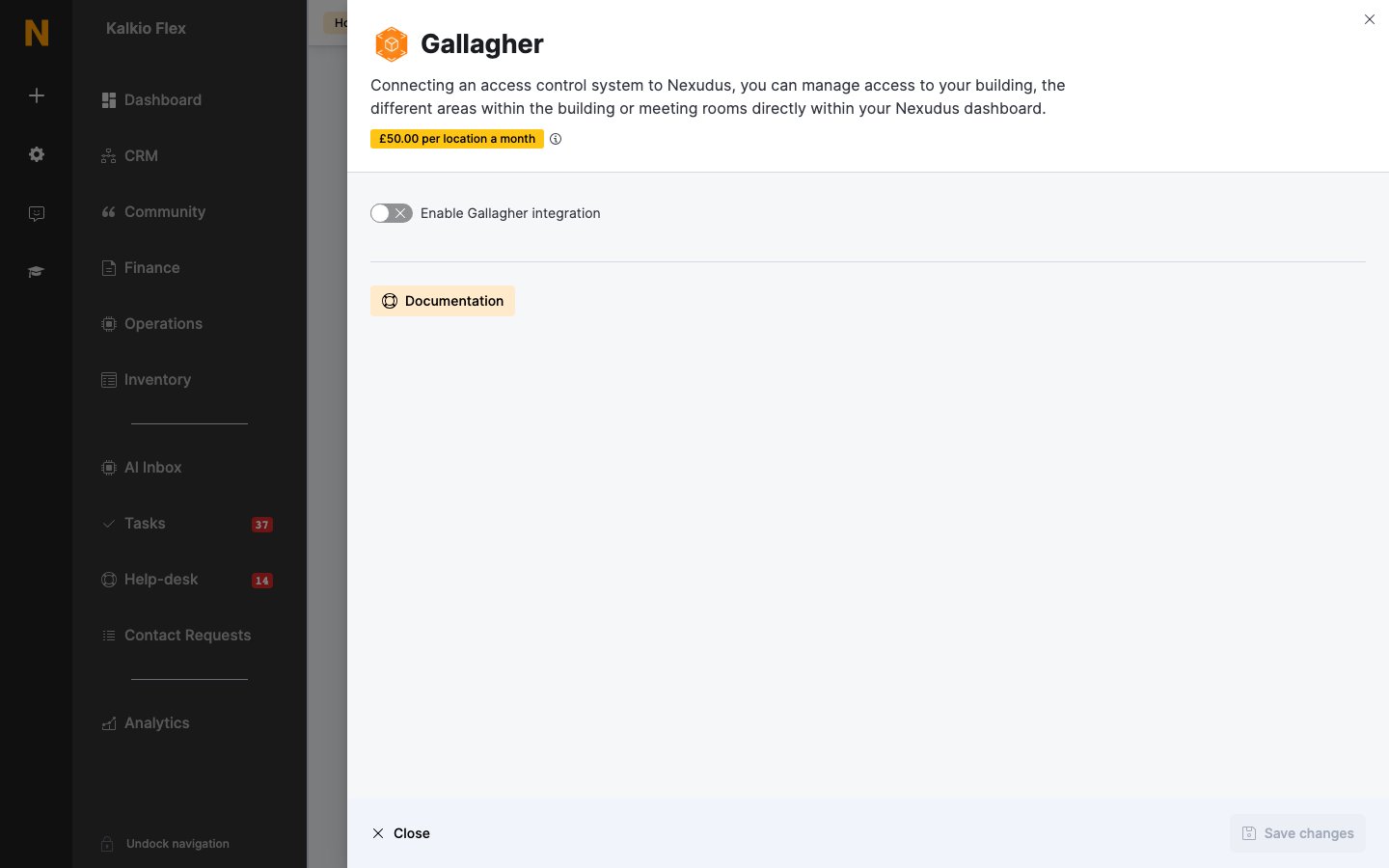
Gallagher Access Control Integration

Overview

Gallagher Command Centre is an enterprise-grade on-premises access control platform that provides comprehensive physical security management. Through Gallagher’s cloud gateway service, Nexudus can connect to your on-premises Command Centre server to automate credential provisioning and access group assignments based on customer contracts, passes, bookings, and desk assignments.

Key Features

  • On-premises control: Your Command Centre server remains on your local network
  • Cloud gateway connectivity: Gallagher’s cloud service bridges Nexudus to your on-premises server
  • Multi-region support: Cloud gateway available in US and AU regions for optimal performance
  • Automatic provisioning: Access is granted and revoked automatically based on plan changes, bookings, and pass assignments
  • Check-in tracking: Use access zone events to automatically check customers in/out
  • RFID card support: Multiple RFID cards per customer with configurable card types
  • Group-based permissions: Map your inventory (passes, resources, desks) to Gallagher access groups
  • Booking-based temporary access: Automatic access during reservation windows
  • PIN code support: Optional user code (PIN) for enhanced security

Integration Type

On-premises with cloud gateway — Gallagher Command Centre runs on your local network as an on-premises server. Gallagher provides a cloud gateway service that securely connects Nexudus to your on-premises server without requiring you to open firewall ports or expose your server directly to the internet. The cloud API endpoints are hosted regionally at commandcentre-api-us.security.gallagher.cloud or commandcentre-api-au.security.gallagher.cloud.
The cloud gateway must be configured by Gallagher before Nexudus can connect to your on-premises Command Centre server. This setup ensures secure communication without compromising your network security.

Capabilities

FeatureSupportedNotes
Pass-based access✅ YesCustomers receive access based on their active passes
Plan-based access✅ IndirectPlans grant access through the passes they include
Resource-based access✅ YesGrants temporary access during reservations
Desk/unit-based access✅ YesIncludes support for team billing contracts
Visitor access❌ NoNot supported by this integration
Booking guest access✅ YesCustomers added as booking guests can access spaces during booking windows
Check-in tracking✅ YesAccess zone events trigger automatic check-ins
Mobile app access❌ NoPhysical cards/PIN codes required for access
Remote door unlock❌ NoPhysical credentials required for access

How It Works

Access Control Model

Gallagher uses an access group model to manage access permissions:
  • Cardholders represent individuals in the system (mapped to Nexudus customers)
  • Access Groups define collections of doors that cardholders can access
  • Access Zones are physical areas monitored for check-in/check-out events
  • Cards are physical RFID credentials assigned to cardholders
  • Divisions organize cardholders within your Gallagher account
When a customer’s access needs change in Nexudus (e.g., they purchase a pass, book a resource, or their contract renews), the integration automatically updates their cardholder record in Gallagher with the appropriate access group memberships.

Multi-Door Support

Gallagher uses access groups to grant permissions to multiple doors. Instead of mapping each door individually:
  1. In Gallagher Command Centre, create an access group (e.g., “24/7 Access”)
  2. Add the relevant doors to that group in Gallagher
  3. In Nexudus, map your pass/resource/desk to that group
  4. Customers with that pass automatically get access to all doors in the group
You must configure which doors belong to each access group in the Gallagher Command Centre platform. Nexudus assigns customers to groups, but the door-to-group mapping is managed in Gallagher.

Prerequisites

Before connecting Nexudus to Gallagher, ensure you have:
  1. Gallagher Command Centre server installed and operational at your location
  2. Cloud gateway configured — Gallagher must set up the cloud gateway connection to your on-premises server
  3. API key obtained from Gallagher (used for authentication through the cloud gateway)
  4. Division ID — The identifier for your organizational division
  5. Card Type ID — The card type to use when provisioning cards
  6. Region selection — US or AU based on your cloud gateway region
  7. Gallagher system configured with access groups and access zones
  8. Nexudus location configured with plans, passes, and resources
Important: The cloud gateway must be configured by Gallagher support before you can connect Nexudus. The cloud gateway creates a secure tunnel between Nexudus and your on-premises Command Centre server without requiring you to open firewall ports or expose your server to the internet.
Contact Gallagher support to request cloud gateway setup and obtain your API key, Division ID, and Card Type ID.

Configuration

Step 1: Request Cloud Gateway Setup from Gallagher

Before you can connect Nexudus to your Gallagher Command Centre server, you must request cloud gateway setup from Gallagher support:
  1. Contact Gallagher support and request cloud gateway setup for Nexudus integration
  2. Provide your details: Share your on-premises Command Centre server information
  3. Select region: Choose US or AU based on your location (affects latency)
  4. Receive credentials: Gallagher will provide:
    • API key for authentication
    • Division ID
    • Card Type ID
    • Confirmation that the cloud gateway is configured and ready
The cloud gateway setup typically takes 1-2 business days. Gallagher will create a secure tunnel between their cloud API and your on-premises server, allowing Nexudus to communicate with your system without exposing it to the internet.

Step 2: Connect Nexudus to Gallagher

Once the cloud gateway is configured by Gallagher:
  1. In the Nexudus dashboard, go to Settings > Integrations
  2. Find Gallagher in the list of integrations
  3. Enable the Enable Gallagher integration toggle
  4. Enter the connection details provided by Gallagher:
    • API Key: Your Gallagher Command Centre API key
    • Region: Select US or AU based on the cloud gateway region configured by Gallagher
    • Division ID: The numeric ID of your division in Gallagher
    • Card Type ID: The ID of the card type to use when creating cards
    • Issue Level: The security level for cards (typically 0 for standard access)
  5. Click Save to establish the connection
Once saved and connected successfully, the configuration panels for access zones, passes, resources, and desks will appear below.
If the connection fails, verify with Gallagher support that the cloud gateway has been properly configured and is online. The API key must match the gateway configuration.

Step 3: Configure Presence Tracking (Optional)

Gallagher can trigger automatic check-ins when customers access specific zones.
  1. In the Presence tracking section, you’ll see all access zones from your Gallagher system
  2. For each zone, choose an action:
    • Nothing: Zone access is tracked in Gallagher but doesn’t affect Nexudus
    • Check In: Accessing this zone checks the customer in
    • Check Out: Accessing this zone checks the customer out
    • Toggle: Accessing switches between checked in and checked out
Common scenarios:
  • Set the main entrance zone to Check In
  • Set the exit zone to Check Out
  • Set internal zones to Nothing (access granted but doesn’t affect presence)
Check-in tracking requires event processing. Nexudus syncs access zone events every 9 minutes. Configure which event types to process using the Gallagher.AccessEventTypes setting.

Step 4: Map Passes to Access Groups

Passes are the primary way customers receive access in Nexudus. Each pass can be mapped to a Gallagher access group.
  1. In the Passes section, you’ll see all passes configured for this location
  2. For each pass, select a Gallagher access group from the dropdown
    • The dropdown shows all access groups available in your Gallagher system
    • Access groups are automatically retrieved when you save the connection settings
  3. Leave blank if a pass should not grant physical access
How it works:
  • When a customer has an active contract on a plan that includes passes, they automatically receive those passes
  • If the pass is mapped to a Gallagher access group, the customer is added to that group
  • When the pass expires or is consumed, access is revoked
  • Time-limited passes (e.g., day passes with validity windows) automatically grant and revoke access at the appropriate times
Example mapping:
Pass NameGallagher Access GroupPurpose
24/7 Access Pass24/7 MembersRound-the-clock building access
Business Hours PassBusiness HoursAccess only during operating hours
Meeting Room PassMeeting RoomsAccess to meeting room zones
Access groups are automatically retrieved from your Gallagher system. If you don’t see a group in the dropdown, verify it exists in Gallagher and re-save your connection settings to refresh the list.
Plans are not directly mapped to access groups. Instead:
  1. Plans include passes via the plan configuration
  2. Passes are what get mapped to access groups (selected from dropdown)
  3. When a customer starts a contract on a plan, they receive the passes included in that plan
  4. Those passes then grant the associated Gallagher access

Step 5: Map Resources to Access Groups

Resources (meeting rooms, event spaces, etc.) can require specific access permissions for bookings.
  1. In the Resources section, you’ll see all resources configured for this location
  2. For each resource, select a Gallagher access group from the dropdown
  3. Leave blank if resource bookings should not grant physical access
How it works:
  • When a customer books a resource, Nexudus grants them access 15 minutes before the booking starts
  • Access is automatically revoked when the booking ends
  • If the booking is cancelled, access is removed immediately
Example mapping:
Resource NameGallagher Access GroupPurpose
Conference Room AMeeting Room AAccess to specific meeting room
Event SpaceEvent HallAccess to event space for bookings
Private OfficePrivate OfficesAccess to private office area
Resource-based access is temporary and booking-specific. A customer only receives access during their booking window, even if they don’t hold a general access pass.

Step 6: Map Desks/Units to Access Groups

Floor plan desks and units can grant access to specific areas when included in a customer’s contract.
  1. In the Desks / Offices section, you’ll see all desks from your floor plans
  2. For each desk, select a Gallagher access group from the dropdown
  3. Leave blank if desk assignments should not grant physical access
How it works:
  • When a desk is added to a customer’s contract, they receive access to the mapped group
  • Access is granted when the contract starts and revoked when it ends
  • Team billing support: If a customer uses team billing (merged billing), they also receive access to desks included in the paying member’s contracts
Example mapping:
Desk/Unit NameGallagher Access GroupPurpose
Private Office #101Private Office Floor 1Access to first-floor private office area
Dedicated Desk Zone ADesk Area AAccess to dedicated desk zone A
Studio #5Studio AccessAccess to individual studio unit
Desk access is based on contract assignments, not direct desk bookings. Customers must have the desk included in an active contract to receive access. Ad-hoc desk bookings (if using desk booking) do not automatically grant Gallagher access.

Step 7: Save Configuration

  1. Review all mappings to ensure they’re correct
  2. Click Save to apply the configuration
  3. Nexudus will immediately start provisioning access for customers based on the new mappings

How Access is Managed

When Access is Granted

Nexudus automatically grants Gallagher access when:
  1. Contract starts: Customer begins a contract on a plan → receives passes included in that plan → assigned to corresponding Gallagher access groups
  2. Pass activated: Customer receives a pass directly (not via a contract) → assigned to the mapped Gallagher access group
  3. Booking created: Customer books a resource → granted access to resource’s group 15 minutes before booking start time
  4. Desk added to contract: Desk is added to an active contract → customer receives access to the desk’s mapped group
  5. Booking guest added: Non-customer is added as a guest on a booking → granted access to resource’s group for the booking duration

When Access is Revoked

Nexudus automatically revokes Gallagher access when:
  1. Contract ends or cancelled: Customer loses passes from that contract → removed from corresponding Gallagher access groups
  2. Pass expires: Pass validity ends or usage is consumed → removed from mapped Gallagher access group
  3. Booking ends or cancelled: Booking time expires or is cancelled → access to resource’s group is removed
  4. Desk removed from contract: Desk is removed from contract → access to desk’s group is revoked
  5. Customer deactivated: Customer account is deactivated → all Gallagher access removed

Access Update Timing

  • Immediate updates: Contract changes, pass assignments, and customer deactivations trigger access updates within seconds
  • Debouncing: Rapid changes to the same customer are batched together (5-second delay) to prevent excessive API calls
  • Booking lead time: Booking access is granted 15 minutes before the booking start time
  • Background processing: Access updates are queued in background jobs to handle high volumes efficiently
  • Distributed locking: Prevents concurrent updates to the same customer across multiple servers
If a customer should have access but doesn’t, the system automatically retries access provisioning. Check the Business Checkup page for any integration errors.

RFID Card Management

Gallagher supports traditional RFID access cards with optional PIN code (user code) support. To assign cards to customers:
  1. Go to Operations > Customers
  2. Select the customer
  3. In their profile, enter card IDs in the Access Card ID field
  4. Separate multiple cards with commas: 123456,789012,345678
  5. Optionally, set a PIN code in the Access PIN Code field (if enabled)
  6. Save the customer profile
Card behavior:
  • No card: Cardholder exists in Gallagher but cannot unlock doors (no physical credentials)
  • Card assigned: Customer can use physical RFID card to unlock doors
  • PIN code set: Customer can use user code (PIN) if the feature is enabled
  • Card removed: Physical access is revoked (cardholder record remains in system)
Card configuration:
  • Card Type: Configured globally using the Gallagher.CardType setting
  • Issue Level: Configured globally using the Gallagher.IssueLevel setting (default: 0)
  • User Code (PIN): Enable by setting Gallagher.SetUserCode to true
Unlike cloud-based systems with mobile app support, Gallagher requires physical RFID cards or PIN codes. Customers cannot unlock doors remotely via a mobile app in this integration.

Troubleshooting

Possible causes:
  1. Pass not mapped: The passes included in the customer’s plan are not mapped to any Gallagher access groups
    • Solution: Go to Settings > Integrations > Gallagher and select an access group for the relevant passes
  2. Access group no longer exists: The selected access group was deleted from Gallagher
    • Solution: Select a different group or recreate the group in Gallagher, then refresh the integration
  3. Pass expired or inactive: The customer’s pass has expired or hasn’t started yet
    • Solution: Check the customer’s passes under their profile to verify validity windows
  4. Cardholder not created: The customer wasn’t created in Gallagher
    • Solution: Check the Business Checkup page for integration errors, or manually trigger an update by editing and saving the customer’s profile
  5. Access group permissions: The Gallagher access group exists but isn’t assigned to any doors
    • Solution: In Gallagher Command Centre, verify the access group includes the correct door controllers
  6. No card assigned: Customer exists in Gallagher but has no physical credentials
    • Solution: Assign an RFID card in the customer’s Access Card ID field
  7. Wrong region: API key is for a different region (US vs AU)
    • Solution: Verify you’ve selected the correct region in the integration settings
  8. Division mismatch: Cardholder created in wrong division
    • Solution: Verify the Division ID setting matches your intended division in Gallagher
Possible causes:
  1. Resource not mapped: The booked resource is not mapped to a Gallagher access group
    • Solution: Select an access group for the resource in Settings > Integrations > Gallagher
  2. Booking too far in future: Access is only granted 15 minutes before booking start time
    • Solution: Wait until booking is within 15 minutes of start time
  3. Booking not confirmed: Some resources require booking confirmation
    • Solution: Confirm the booking if it’s in pending state
  4. No card assigned: Customer has no physical card to use
    • Solution: Assign an RFID card to the customer’s profile
Possible causes:
  1. Card Type ID incorrect: The configured card type doesn’t match your Gallagher system
    • Solution: Verify the Gallagher.CardType setting matches a valid card type ID in your Gallagher system
  2. Card not synced: Recent card changes haven’t been synced to Gallagher
    • Solution: Wait a few minutes for sync, or manually trigger by editing and saving the customer profile
  3. Cardholder inactive: Customer’s cardholder record is marked as unauthorised
    • Solution: Verify customer has active passes/contracts that grant access
  4. Issue Level mismatch: Card issue level doesn’t match door requirements
    • Solution: Check the Gallagher.IssueLevel setting and door controller requirements
  5. Card reader issue: Physical hardware problem
    • Solution: Test cards on different readers to isolate hardware issues
Possible causes:
  1. Zone action not configured: Access zone is set to “Nothing” instead of a check-in action
    • Solution: Configure the zone action in Settings > Integrations > Gallagher
  2. Event types not configured: The Gallagher.AccessEventTypes setting is missing or incorrect
    • Solution: Configure which event types to process (contact Gallagher support for event type IDs)
  3. Sync delay: Background task runs every 9 minutes
    • Solution: Wait up to 9 minutes for the next event sync cycle
  4. Cardholder description format: Customer ID not found in cardholder description
    • Solution: Verify cardholder descriptions follow the format NX-{customerId}
Possible causes:
  1. Cloud gateway not configured: Gallagher hasn’t completed the cloud gateway setup
    • Solution: Contact Gallagher support to verify the cloud gateway is configured and online for your on-premises server
  2. Invalid API key: The API key is incorrect or has been revoked
    • Solution: Obtain a new API key from Gallagher and update in Settings > Integrations > Gallagher
  3. Wrong region: API key is for a different region than selected
    • Solution: Verify which cloud gateway region Gallagher configured (US or AU) and select the matching region in Nexudus
  4. On-premises server offline: Your Command Centre server is not running or unreachable
    • Solution: Verify your on-premises Command Centre server is running and accessible from your local network
  5. API key permissions: API key doesn’t have sufficient permissions
    • Solution: Ensure the API key has full cardholder and access group management permissions
  6. Network connectivity: Unable to reach Gallagher cloud API gateway
    • Solution: Check your internet connection and verify no firewall is blocking access to *.gallagher.cloud
Possible causes:
  1. Access group deleted: Group was selected but has since been deleted from Gallagher
    • Solution: Recreate the group in Gallagher or select a different group in Nexudus
  2. Stale group list: Available groups not refreshed after changes in Gallagher
    • Solution: Re-save your connection settings to refresh the group list from Gallagher
  3. API rate limiting: Too many requests to Gallagher API
    • Solution: Wait a few minutes and try again; background jobs will continue processing
  4. Division mismatch: Access groups from different division
    • Solution: Ensure access groups exist in the division specified by your Division ID setting
Possible causes:
  1. Email already exists in Gallagher: Another cardholder already uses this email
    • Solution: Gallagher uses description field with format NX-{customerId} for lookups, not email. The system will find the existing cardholder by description instead.
  2. Company and individual records: Customer has both company and individual records with the same email
    • Solution: Nexudus automatically prioritizes the individual record and processes it first

Monitoring Integration Errors

Nexudus monitors your access control integration and alerts you to any issues that need attention.

Business Checkup Dashboard

Access control integration errors are displayed on the Business Checkup page:
  1. Go to Home > Important Items in the dashboard, or
  2. Navigate directly to dashboard.nexudus.com/dashboards/checkup
  3. Look for the Access Control Integration tile
  4. If there are errors, the tile will be displayed in red

What Gets Flagged

  • Authentication failures: Invalid or expired API keys
  • Provisioning errors: Failed attempts to create or update customer access
  • Configuration issues: Missing or invalid access group mappings
  • Synchronization problems: Delays or failures in updating access permissions
  • Event processing errors: Issues reading or processing access zone events
Each error includes:
  • The customer affected
  • The nature of the problem
  • When the error occurred
  • Suggested actions to resolve it
Nexudus automatically retries failed operations with exponential backoff (60 attempts with 60-second delays). If errors persist, check the Business Checkup page for detailed information and follow the suggested resolution steps.

Security Considerations

Data Shared with Gallagher

When provisioning access, Nexudus shares the following information with Gallagher:
  • Customer data: First name, last name
  • Description: Format NX-{customerId} (used to link records between systems)
  • RFID cards: Card IDs from the Access Card ID field
  • User Code: PIN code from the Access PIN Code field (if enabled)
  • Division: Organizational division for the cardholder
Nexudus does not share:
  • Email addresses
  • Phone numbers
  • Billing information
  • Payment details
  • CoCloud gateway**: API key authenticates through Gallagher’s cloud gateway, which securely connects to your on-premises server
  • HTTPS encryption: All communication uses HTTPS (TLS)
  • No scheme prefix: API key sent directly in the Authorization header value
  • Regional endpoints: API calls routed to US or AU cloud gateway based on configuration
  • No firewall changes: Cloud gateway connects outbound from your server to Gallagher’s cloud, requiring no inbound firewall rules

API Authentication

  • API Key: Header-based authentication using custom API key
  • HTTPS encryption: All communication uses HTTPS (TLS)
  • No scheme prefix: API key sent directly in the Authorization header value
  • Regional endpoints: API calls routed to US or AU endpoints based on configuration

External ID Management

  • Description field: Format NX-{customerId} (e.g., NX-12345)
  • Lookup method: Cardholders retrieved by searching the description field
  • Uniqueness: Description ensures each Nexudus customer maps to one cardholder
Keep your Gallagher API key secure. Do not share it publicly or commit it to version control. If compromised, immediately revoke it in Gallagher and generate a new one.

Best Practices

Access Group Organization

Create access groups in Gallagher based on access levels, not products or plans:
  • Good: “24/7 Access”, “Business Hours”, “Meeting Rooms”, “Private Offices”
  • Avoid: “Hot Desk Plan”, “Dedicated Desk Plan” (these are billing products, not access types)
This approach lets you grant the same physical access through multiple plans.

Multi-Location Management

If you have multiple Nexudus locations using the same Gallagher system:
  • Each location can map to the same or different access groups
  • The integration handles multiple locations mapping to the same groups automatically
  • Use clear naming in Gallagher to distinguish between locations if needed

Division Structure

  • Use divisions in Gallagher to organize cardholders by location or organizational unit
  • All cardholders from a Nexudus location will be created in the configured division
  • Ensure access groups are accessible from the division you specify

Card Type Configuration

  • Configure a default card type that matches your physical RFID cards
  • Use the same card type across all customers unless you have specific security requirements
  • Set the issue level appropriately based on your security policies

User Code (PIN) Support

  • Enable user codes only if your Gallagher deployment supports them
  • SeDeployment**: On-premises Command Centre server with cloud gateway
  • Base URL: https://commandcentre-api-us.security.gallagher.cloud or https://commandcentre-api-au.security.gallagher.cloud
  • Authentication: Header Value Authentication (API key in Authorization header)
  • API Format: JSON
  • Content Type: application/json
  • Regional routing: US or AU based on Gallagher.Region setting
  • Gateway connection: Cloud API acts as secure proxy to your on-premises server
  • Network requirements: Outbound HTTPS connection from Command Centre server to Gallagher cloud (no inbound ports required)

API Architecture

  • Base URL: https://commandcentre-api-us.security.gallagher.cloud or https://commandcentre-api-au.security.gallagher.cloud
  • Authentication: Header Value Authentication (API key in Authorization header)
  • API Format: JSON
  • Content Type: application/json
  • Regional routing: US or AU based on Gallagher.Region setting

Key Endpoints

  • Cardholders:
    • GET /api/cardholders?description="{description}"&fields=accessGroups.href,id,description,shortName,cards.number,cards.href - Search by description
    • GET /api/cardholders/{id} - Get full cardholder record
    • POST /api/cardholders - Create cardholder
    • PATCH /api/cardholders/{id} - Update cardholder (partial updates)
  • Access Groups:
    • GET /api/access_groups?fields=id,name,href&top=1000 - List all access groups
  • Access Zones:
    • GET /api/access_zones?fields=id,name,href&top=1000 - List all access zones
  • Events:
    • GET /api/events?type={eventTypes}&from={isoDate} - Get events after a date

Cardholder Model

{
  "firstName": "John",
  "lastName": "Doe",
  "description": "NX-12345",
  "authorised": true,
  "usercode": "1234",
  "division": {
    "href": "https://commandcentre-api-us.security.gallagher.cloud/api/divisions/1"
  },
  "cards": [
    {
      "number": "123456",
      "type": {
        "href": "https://commandcentre-api-us.security.gallagher.cloud/api/card_types/1"
      },
      "issueLevel": 0
    }
  ],
  "accessGroups": [
    {
      "accessGroup": {
        "id": "10",
        "name": "24/7 Access",
        "href": "https://commandcentre-api-us.security.gallagher.cloud/api/access_groups/10"
      },
      "href": "..."
    }
  ]
}

Update Model (PATCH)

{
  "firstName": "John",
  "lastName": "Doe",
  "authorised": true,
  "usercode": "1234",
  "cards": {
    "add": [
      {
        "number": "789012",
        "type": {
          "href": ".../api/card_types/1"
        },
        "issueLevel": 0
      }
    ],
    "remove": [
      {
        "href": ".../api/cards/456"
      }
    ]
  },
  "accessGroups": {
    "add": [
      {
        "accessGroup": {
          "href": ".../api/access_groups/20"
        }
      }
    ],
    "remove": [
      {
        "href": ".../api/cardholders/1/access_groups/10"
      }
    ]
  }
}

Business Settings Reference

SettingPurpose
Gallagher.EnabledIntegration enabled flag (“true”/“false”)
Gallagher.ApiKeyAPI key for authentication
Gallagher.RegionRegion selection (“US” or “AU”)
Gallagher.DivisionDivision ID for cardholders
Gallagher.CardTypeCard type ID for new cards
Gallagher.IssueLevelCard issue level (default: 0)
Gallagher.SetUserCodeEnable PIN code sync (“true”/“false”)
Gallagher.LastEventDateLast processed event timestamp (ISO 8601)
Gallagher.AccessEventTypesEvent types to process (comma-separated)
Gallagher.Controller.Id_{zoneId}.ActionCheck-in action per zone (Nothing/CheckIn/CheckOut/Toggle)

Access Update Logic

  1. Passes: Active passes from contracts + shared passes from paying member
  2. Check-ins: Passes from open check-ins (maintains access during session)
  3. Bookings: Resources with bookings starting within 15 minutes
  4. Booking guests: Resources from bookings where customer is a visitor
  5. Desks: Desks from active contracts (own + team billing)
  6. Access groups: Aggregated list of unique group IDs
  7. Cardholder provisioning: Create/update cardholder with aggregated groups
  8. Card management: Add/remove cards based on AccessCardID field
  9. Authorization status: Authorised=true if customer has any groups

External IDs

  • Description format: NX-{coworkerId} (e.g., NX-12345)
  • Lookup: Search by description field using exact match
  • Cardholder ID: Gallagher-assigned ID, stored separately from Nexudus ID

Card Management Logic

  • Multiple cards: Comma-separated list in AccessCardID field
  • Card sync: Existing cards compared with current AccessCardID
  • Add operation: New cards added via cards.add array
  • Remove operation: Missing cards removed via cards.remove array with href
  • No cards: If AccessCardID is empty, all cards are removed
  • Card properties: Type and IssueLevel applied to all cards

Access Group Management

  • Add operation: Missing groups added via accessGroups.add array
  • Remove operation: Extra groups removed via accessGroups.remove array with href
  • Group href format: Full URL to access group resource
  • Validation: Invalid group IDs filtered out before sync

Event Processing

  • Interval: Background task runs every 9 minutes
  • Event query: Events retrieved from lastEventDate (ISO 8601 format)
  • Event retention: Limited to last 24 hours if gap > 1 day
  • Event types: Configurable via Gallagher.AccessEventTypes setting
  • Cardholder lookup: Extract customer ID from description field (format: NX-{id})
  • Check-in trigger: Only events matching configured zone actions
  • Business validation: Customer must be registered with the business

Error Handling

  • Authentication failures: Logged and integration disabled
  • Provisioning errors: Automatic retry with exponential backoff (60 attempts, 60-second delays)
  • Business Checkup: Integration errors displayed on dashboard
  • Distributed locks: Prevent concurrent updates to same customer (GALLAGHER:coworker:{coworkerId})
  • Event system: Raises AccessControlEventData for error tracking

Performance Optimization

  • Debouncing: 5-second debounce prevents rapid repeated updates for same customer
  • Semaphore: ProcessGallagherBusiness limited to 50 concurrent executions
  • Access signature: Hash of group memberships prevents unnecessary updates
  • Batch processing: Events processed in bulk per business

Multi-Location Support

  • Cross-location groups: System handles customers with groups from multiple locations
  • Group validation: Only groups from current Gallagher system included in updates
  • External groups detection: UI shows warning if customer has groups from other locations

Region Configuration

  • US endpoint: https://commandcentre-api-us.security.gallagher.cloud
  • AU endpoint: https://commandcentre-api-au.security.gallagher.cloud
  • Selection: Based on Gallagher.Region setting (“US” or “AU”)
  • Default: US if not specified

Queue Management

  • Critical queue: 1_critical for immediate access updates
  • Access control queue: 1_access_control for standard updates
  • High priority queue: 2_high for event processing
  • Low priority queue: 4_low for business-level processing

Company vs Individual Records

  • Check: If customer is a company and an individual record exists with same email
  • Behavior: Individual records processed first (ordered by CoworkerType and CreatedOn)
  • Email handling: All records with same email processed together