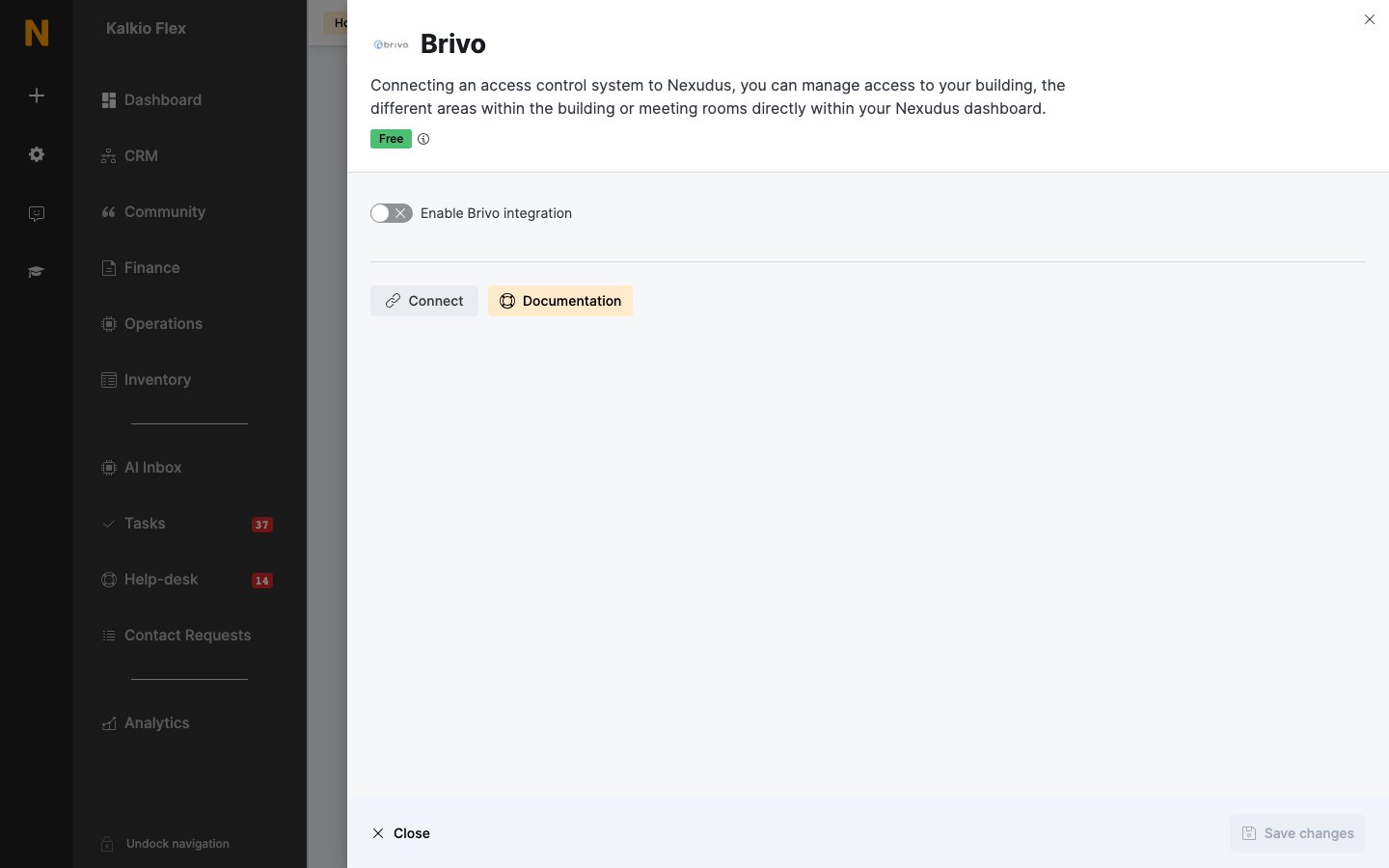
Brivo Access Control Integration

Overview

Brivo is a cloud-based access control platform that enables flexible, secure physical access management. The Nexudus integration with Brivo automates credential provisioning and access group assignments based on customer contracts, passes, bookings, and desk assignments.

Key Features

  • Cloud-based management: Manage access from anywhere through Brivo’s web platform
  • Mobile access: Customers can use the Brivo OnAir mobile app via the Nexudus Passport app
  • Automatic provisioning: Access is granted and revoked automatically based on plan changes, bookings, and pass assignments
  • Visitor support: Time-limited credentials for visitors with automatic expiry
  • Check-in tracking: Optionally use door events to check customers in/out
  • Multi-region support: Works with both Global and Europe Brivo regions
  • Group-based permissions: Map your inventory (passes, resources, desks) to Brivo access groups

Integration Type

Cloud-based — Brivo operates entirely in the cloud with no on-premises server requirements.

Capabilities

FeatureSupportedNotes
Pass-based access✅ YesPrimary access mechanism via pass-to-group mapping
Plan-based access✅ IndirectPlans grant access through the passes they include
Resource-based access✅ YesTemporary access during bookings with 15-min lead time
Desk/unit-based access✅ YesContract-based access with team billing support
Visitor access✅ YesTime-limited credentials with automatic expiry
Booking guest access✅ YesCustomers added as booking guests can access spaces during booking windows
Check-in tracking✅ YesDoor events trigger automatic check-ins
Mobile app access✅ YesBrivo OnAir integration via Nexudus Passport app
Remote door unlock❌ NoCustomers must be physically near doors to unlock

How It Works

Access Control Model

Brivo uses a user and group model:
  1. Users: Each customer is created as a user in Brivo with their email and name
  2. Groups: Access permissions are organized into groups in Brivo (e.g., “24/7 Access”, “Meeting Room A”)
  3. Credentials: Users receive credentials (physical cards, QR codes, or mobile passes) to access doors
  4. Access points: Physical doors/locks controlled by Brivo hardware
When a customer should have access (based on their plan, passes, or bookings), Nexudus:
  • Creates or updates their Brivo user profile
  • Assigns them to the appropriate access groups
  • Provisions credentials (mobile pass or physical card)

Multi-Door Support

Brivo uses access groups to grant permissions to multiple doors. Instead of mapping each door individually:
  1. In Brivo, create an access group (e.g., “Coworking Space Access”)
  2. Add the relevant doors to that group in Brivo
  3. In Nexudus, map your pass/resource/desk to that group
  4. Customers with that pass automatically get access to all doors in the group
You must configure which doors belong to each group in the Brivo platform. Nexudus assigns customers to groups, but the door-to-group mapping is managed in Brivo.

Prerequisites

Before connecting Nexudus to Brivo, ensure you have:
  1. Active Brivo account with administrator access
  2. Brivo API Key obtained from Brivo support or your account manager
  3. Brivo site configured with access points (doors/locks) installed and online
  4. Access groups created in Brivo for different access levels (e.g., 24/7 access, business hours only)
  5. API access enabled on your Brivo account
  6. Nexudus location configured with plans, passes, and resources
Getting your API Key: Contact Brivo support or your Brivo account manager to request an API Key for your account. You’ll need this before you can connect Nexudus to Brivo. The API Key is separate from your login credentials and enables programmatic access to your Brivo system.
You’ll need to choose your region (Global or Europe) during setup. This determines which Brivo API endpoint is used and cannot be changed later without reconnecting.

Configuration

Step 1: Connect to Brivo

  1. In the Nexudus dashboard, go to Settings > Integrations
  2. Find Brivo in the list and click to open the integration settings
  3. Toggle Enable Brivo integration to ON
  4. Enter your API Key (obtained from Brivo support)
  5. Select your region:
    • Global: For accounts on https://auth.brivo.com
    • Europe: For accounts on https://auth.eu.brivo.com
  6. Click Connect
  7. Sign in to your Brivo account when prompted
  8. Grant Nexudus permission to access your Brivo account
  9. You’ll be redirected back to Nexudus
Once connected, Nexudus can read your Brivo sites, access points, groups, and credential formats.
The region selection (Global vs Europe) is tied to your Brivo account setup. If you’re unsure which region your account uses, check with your Brivo administrator or look at your Brivo login URL.

Step 2: Select Your Site

If you have multiple Brivo sites:
  1. From the Site dropdown, select the site that corresponds to this Nexudus location
  2. This determines which access points and groups are available for mapping
If you have multiple locations in Nexudus and multiple sites in Brivo, you’ll need to configure the integration separately for each location.

Step 3: Configure Presence Tracking (Optional)

Brivo can trigger automatic check-ins when customers unlock specific doors.
  1. In the Access Points section, you’ll see all doors from your Brivo site
  2. For each door, choose an action:
    • Nothing: Door access is tracked in Brivo but doesn’t affect Nexudus
    • Check In: Unlocking this door checks the customer in
    • Check Out: Unlocking this door checks the customer out
    • Toggle: Unlocking switches between checked in and checked out
Common scenarios:
  • Set the main entrance to Check In
  • Set the exit door to Check Out
  • Set internal doors to Nothing (access granted but doesn’t affect presence)
Check-in tracking requires webhook events from Brivo. Nexudus listens for access granted events and triggers the appropriate check-in action based on your configuration.

Step 4: Map Passes to Access Groups

Passes are the primary way customers receive access in Nexudus. Each pass can be mapped to a Brivo access group.
  1. In the Passes section, you’ll see all passes configured for this location
  2. For each pass, select the Brivo Access Group that customers should be assigned to when they hold that pass
  3. Leave blank if a pass should not grant physical access
How it works:
  • When a customer has an active contract on a plan that includes passes, they automatically receive those passes
  • If the pass is mapped to a Brivo group, the customer is added to that group in Brivo
  • When the pass expires or is consumed, access is revoked
  • Time-limited passes (e.g., day passes with validity windows) automatically grant and revoke access at the appropriate times
Example mapping:
Pass NameBrivo GroupPurpose
24/7 Access Pass24/7 MembersRound-the-clock building access
Business Hours PassBusiness HoursAccess only during operating hours
Meeting Room PassMeeting RoomsAccess to meeting room zones
Plans are not directly mapped to access groups. Instead:
  1. Plans include passes via the plan configuration
  2. Passes are what get mapped to access groups
  3. When a customer starts a contract on a plan, they receive the passes included in that plan
  4. Those passes then grant the associated Brivo access

Step 5: Map Resources to Access Groups

Resources (meeting rooms, event spaces, etc.) can require specific access permissions for bookings.
  1. In the Resources section, you’ll see all resources configured for this location
  2. For each resource, select the Brivo Access Group required to access that space
  3. Leave blank if resource bookings should not grant physical access
How it works:
  • When a customer books a resource, Nexudus grants them access 15 minutes before the booking starts
  • Access is automatically revoked when the booking ends
  • If the booking is cancelled, access is removed immediately
Example mapping:
Resource NameBrivo GroupPurpose
Conference Room AMeeting Room AAccess to specific meeting room
Event SpaceEvent HallAccess to event space for bookings
Private OfficePrivate OfficesAccess to private office area
Resource-based access is temporary and booking-specific. A customer only receives access during their booking window, even if they don’t hold a general access pass.

Step 6: Map Desks/Units to Access Groups

Floor plan desks and units can grant access to specific areas when included in a customer’s contract.
  1. In the Desks/Units section, you’ll see all desks from your floor plans
  2. For each desk, select the Brivo Access Group required to access that area
  3. Leave blank if desk assignments should not grant physical access
How it works:
  • When a desk is added to a customer’s contract, they receive access to the mapped group
  • Access is granted when the contract starts and revoked when it ends
  • Team billing support: If a customer uses team billing (merged billing), they also receive access to desks included in the paying member’s contracts
Example mapping:
Desk/Unit NameBrivo GroupPurpose
Private Office #101Private Office Floor 1Access to first-floor private office area
Dedicated Desk Zone ADesk Area AAccess to dedicated desk zone A
Studio #5Studio AccessAccess to individual studio unit
Desk access is based on contract assignments, not direct desk bookings. Customers must have the desk included in an active contract to receive access. Ad-hoc desk bookings (if using desk booking) do not automatically grant Brivo access.

Step 7: Configure Visitor Access (Optional)

Brivo supports time-limited credentials for visitors.
  1. In the Visitor Settings section, select the Brivo Access Groups that visitors should receive
  2. Multiple groups can be selected if visitors need access to multiple areas
  3. Optionally configure:
    • Credential format: Choose which credential format to use for visitors (QR code, PIN, etc.)
    • Automatic mobile invitations: Enable to automatically send mobile pass invitations to visitors
How visitor access works:
  • When a visitor is registered in Nexudus with an expected arrival time, Nexudus creates a temporary Brivo user
  • The visitor receives a time-limited credential (access starts 15 minutes before expected arrival)
  • Access automatically expires:
    • Guest on a booking: 15 minutes after the booking ends
    • Regular visitor: At midnight (location’s time zone) after the arrival date
  • When the visitor is marked as departed or deleted, their Brivo credential is removed immediately
Visitors can also be added as guests on bookings. When a customer adds a guest to a meeting room booking, the guest receives the same access as the resource grants, limited to the booking time window.

Step 8: Configure Mobile Access (Optional)

Brivo OnAir enables customers to unlock doors using their smartphone via the Nexudus Passport app. Requirements:
  • Brivo OnAir must be enabled on your Brivo account
  • Customers must download the Nexudus Passport app
  • The integration must be configured to use mobile credentials
Setup:
  1. In Brivo, ensure your access points support OnAir (mobile credentials)
  2. In Nexudus, under Credential Settings, select:
    • Credential format: Choose “Brivo Mobile Pass”
    • Redeem OnAir passes automatically: Enable to automatically provision mobile passes without requiring customers to manually redeem an invitation
Customer experience:
  1. Customer logs in to the Nexudus Passport app
  2. App detects Brivo integration is enabled
  3. Customer receives a Brivo OnAir invitation:
    • Automatic mode: Invitation is pre-redeemed, customer can unlock doors immediately
    • Manual mode: Customer receives an email with an access code to redeem in the Brivo app
  4. Customer can unlock doors directly from the Passport app
If automatic redemption is disabled, customers receive an email with a Brivo OnAir access code. They must enter this code in the Brivo Mobile app to activate their mobile credential.

Step 9: Save Configuration

  1. Review all mappings to ensure they’re correct
  2. Click Save to apply the configuration
  3. Nexudus will immediately start provisioning access for customers based on the new mappings

How Access is Managed

When Access is Granted

Nexudus automatically grants Brivo access when:
  1. Contract starts: Customer begins a contract on a plan → receives passes included in that plan → assigned to corresponding Brivo groups
  2. Pass activated: Customer receives a pass directly (not via a contract) → assigned to the mapped Brivo group
  3. Booking created: Customer books a resource → granted access to resource’s group 15 minutes before booking start time
  4. Desk added to contract: Desk is added to an active contract → customer receives access to the desk’s mapped group
  5. Visitor registered: Visitor is added with expected arrival → temporary Brivo credential created
  6. Booking guest added: Non-customer is added as a guest on a booking → granted access to resource’s group for the booking duration

When Access is Revoked

Nexudus automatically revokes Brivo access when:
  1. Contract ends or cancelled: Customer loses passes from that contract → removed from corresponding Brivo groups
  2. Pass expires: Pass validity ends or usage is consumed → removed from mapped Brivo group
  3. Booking ends or cancelled: Booking time expires or is cancelled → access to resource’s group is removed
  4. Desk removed from contract: Desk is removed from contract → access to desk’s group is revoked
  5. Customer deactivated: Customer account is deactivated → all Brivo access removed
  6. Visitor expires: Visitor’s access window ends or visitor is deleted → Brivo credential deleted
  7. Check-in expires: If customer checks out or check-in expires, certain temporary access may be revoked

Access Update Timing

  • Immediate updates: Contract changes, pass assignments, and customer deactivations trigger access updates within seconds
  • Booking lead time: Booking access is granted 15 minutes before the booking start time
  • Visitor access: Starts 15 minutes before expected arrival
  • Background processing: Access updates are queued in background jobs to handle high volumes efficiently
If a customer should have access but doesn’t, the system automatically retries access provisioning. Check the Business Checkup page for any integration errors.

Mobile App Experience

Customers can use the Nexudus Passport mobile app to access doors via Brivo OnAir.

Setup for Customers

  1. Customer downloads the Nexudus Passport app (iOS or Android)
  2. Signs in with their Nexudus credentials
  3. App detects Brivo integration is active
  4. Customer receives or redeems a Brivo OnAir mobile pass:
    • Automatic mode: Pass is ready immediately
    • Manual mode: Customer receives an email with an access code to enter in the Brivo app

Using Mobile Access

  1. Customer opens the Nexudus Passport app
  2. Navigates to Unlock Doors section
  3. Views available Brivo OnAir credentials
  4. Approaches door and uses phone to unlock (via Bluetooth or QR code, depending on Brivo hardware)

Revoking Mobile Access

Customers can revoke and re-invite their mobile pass from the Nexudus Passport app if:
  • They changed phones
  • The pass stopped working
  • They want to refresh their credentials
Admins can also force a refresh by:
  1. Temporarily deactivating the customer
  2. Reactivating the customer
  3. Access is automatically re-provisioned

Troubleshooting

Possible causes:
  1. Pass not mapped: The passes included in the customer’s plan are not mapped to any Brivo access groups
    • Solution: Go to Settings > Integrations > Brivo and map the relevant passes to access groups
  2. Pass expired or inactive: The customer’s pass has expired or hasn’t started yet
    • Solution: Check the customer’s passes under their profile to verify validity windows
  3. Brivo user not created: The customer wasn’t created in Brivo
    • Solution: Check the Business Checkup page for integration errors, or manually trigger an update by editing and saving the customer’s profile
  4. Access group permissions: The Brivo access group exists but isn’t assigned to any doors
    • Solution: In Brivo, verify the access group includes the correct access points
  5. Credential not provisioned: Customer exists in Brivo but has no active credential
    • Solution: Check if the customer has redeemed their OnAir invitation (if using mobile access), or issue a physical card
Possible causes:
  1. Resource not mapped: The booked resource is not mapped to a Brivo access group
    • Solution: Map the resource to an access group in Settings > Integrations > Brivo
  2. Booking too far in future: Access is only granted 15 minutes before booking start time
    • Solution: Wait until booking is within 15 minutes of start time
  3. Booking not confirmed: Some resources require booking confirmation
    • Solution: Confirm the booking if it’s in pending state
Possible causes:
  1. Visitor access not configured: Visitor access groups are not set in the integration settings
    • Solution: Configure visitor access groups in Settings > Integrations > Brivo
  2. Visitor code not generated: The visitor doesn’t have a visitor code assigned
    • Solution: Ensure the visitor has a unique visitor code in their profile
  3. Access window not started: Visitor access starts 15 minutes before expected arrival
    • Solution: Check the visitor’s expected arrival time
  4. Credential expired: Visitor access window has ended
    • Solution: Update the visitor’s expected arrival time or mark them as departed and re-register
Possible causes:
  1. OnAir not enabled: Brivo OnAir is not enabled on your Brivo account
    • Solution: Contact Brivo support to enable OnAir for your account
  2. Invitation not redeemed: Customer received an invitation but hasn’t redeemed it
    • Solution: Check customer’s email for the Brivo OnAir invitation code, or enable automatic redemption
  3. Customer changed phones: Mobile credential is tied to a specific device
    • Solution: Customer should revoke and re-invite their mobile pass from the Nexudus Passport app
  4. Bluetooth/location disabled: OnAir requires Bluetooth and location services
    • Solution: Customer should enable Bluetooth and location permissions for the Nexudus Passport app
Possible causes:
  1. Multiple active contracts: Customer has another active contract that includes the same passes
    • Solution: This is expected behavior — access remains as long as any active contract provides it
  2. Shared passes: Customer is part of a team with shared passes from another team member
    • Solution: Access remains as long as the paying team member’s contract is active
  3. Background job delayed: Access revocation is queued and may take a few minutes
    • Solution: Wait 5-10 minutes and check again, or check the Business Checkup page if errors persist
Cause: Your Brivo API credentials or subscription have expired or been revoked.Solution:
  1. Contact your Brivo account manager to verify your API access is active
  2. Reconnect the integration (disconnect and connect again) to refresh credentials
  3. Check that your Brivo subscription includes API access
Cause: Nexudus is making too many API requests to Brivo (hitting rate limits).Solution:
  • This is usually temporary and will resolve automatically
  • If it persists, it indicates high access update volume (e.g., large contract changes affecting many customers)
  • Contact Nexudus support if this error continues for more than 30 minutes

Monitoring Integration Errors

Nexudus monitors your access control integration and alerts you to any issues that need attention.

Business Checkup Dashboard

Access control integration errors are displayed on the Business Checkup page:
  1. Go to Home > Important Items in the dashboard, or
  2. Navigate directly to dashboard.nexudus.com/dashboards/checkup
  3. Look for the Access Control Integration tile
  4. If there are errors, the tile will be displayed in red

What Gets Flagged

  • Authentication failures: Expired credentials or invalid API tokens
  • Provisioning errors: Failed attempts to create or update customer access
  • Configuration issues: Missing or invalid access group mappings
  • Synchronization problems: Delays or failures in updating access permissions
Each error includes:
  • The customer affected
  • The nature of the problem
  • When the error occurred
  • Suggested actions to resolve it
Nexudus automatically retries failed operations. If errors persist, check the Business Checkup page for detailed information and follow the suggested resolution steps.

Security Considerations

Data Shared with Brivo

When provisioning access, Nexudus shares the following information with Brivo:
  • Customer data: First name, last name, email address
  • External ID: Nexudus customer ID (used to link records between systems)
  • Visitor data: Name, email, visitor code
Nexudus does not share:
  • Billing information
  • Payment details
  • Contract specifics (only access group assignments)
  • Personal notes or custom fields

Credential Management

  • Physical cards: Managed entirely in Brivo; Nexudus only assigns access groups
  • Mobile credentials: Provisioned through Brivo OnAir; Nexudus triggers invitation but doesn’t handle the credential itself
  • Visitor credentials: Time-limited and automatically expire
  • User passwords: Never shared with Nexudus; authentication to Brivo apps is handled by Brivo

Technical Details

API Architecture

  • Base URLs:
    • US: https://api.brivo.com
    • EU: https://api.eu.brivo.com
  • Authorization URLs:
    • US: https://auth.brivo.com
    • EU: https://auth.eu.brivo.com
  • Authentication: OAuth2 Authorization Code flow
  • Authorization path: /oauth/authorize
  • Token path: /oauth/token
  • Token type: Bearer token (stored in Brivo.ApiToken setting)
  • Refresh token: Stored in Brivo.ApiRefreshToken setting
  • Client credential style: POST body (not Authorization header)
  • Rate limiting:
    • Debug: 20 requests/second
    • Production: 50 requests/second
    • Per API key, distributed across multiple servers

Key Endpoints

  • Users: Create, update, delete Brivo users
  • Groups: Manage access groups and group assignments
  • Credentials: Provision mobile passes, QR codes, PIN codes
  • Sites: Query sites associated with the account
  • Access Points: Query doors and access points
  • Events: Query access granted events with pagination
  • Digital Invitations: Send OnAir mobile pass invitations

Synchronization

  • Access updates: Debounced by 5 seconds per customer to batch rapid changes
  • Background task: Polls door events every 9 minutes for check-in tracking
  • Event query limitations: Brivo cannot query more than 24 hours of data in a single call
  • Event pagination: Forward-in-time pagination using occurred__gt and offset parameters
  • Distributed locking: Semaphore-based (max 10 concurrent operations, 15-minute timeout)
  • User provisioning: Lazy creation on first inventory assignment
  • Credential rules: Created/updated/deleted as inventory changes
  • Access signature hashing: Prevents unnecessary API calls when access hasn’t changed

External IDs

  • Customers: BrivoUserId field stores Brivo user ID (integer)
  • Lookup: coworker.BrivoUserId maps to Brivo user’s id field
  • Visitors: Temporary Brivo users created with firstName, lastName, email

User Model

{
  "id": 12345,
  "firstName": "John",
  "lastName": "Doe",
  "email": "john@example.com",
  "externalId": "CUSTOMER-67890",
  "suspended": false,
  "groups": [1, 2, 3]
}

Visitor Access

  • Visitor users: Temporary Brivo users with time-limited credentials
  • Access time window:
    • Start: 15 minutes before expected arrival
    • End: 15 minutes after departure (or midnight if no departure set)
  • Access groups:
    • Booking-based: From resource or desk mapped groups
    • General visitors: From Brivo.VisitorAccessGroupIds setting
  • Credential format: Configurable via Brivo.QR.CardFormat setting
  • Cleanup: Users deleted after access window expires

Mobile Credentials (OnAir)

  • OnAir invitations: Sent via Brivo Digital Invitation API
  • Automatic redemption: Configurable via Brivo.RedeemOnAirPassesAutomatically
  • Manual redemption: Customer receives email with access code to enter in Brivo app
  • Integration: Nexudus Passport app integrates with Brivo OnAir
  • Revocation: Customer can revoke and re-invite from Passport app

Business Settings Reference

SettingPurpose
Brivo.EnableIntegration enabled flag (“true”/“false”)
Brivo.RegionAPI region (“US” or “EU”)
Brivo.ApiKeyAPI key for rate limiting identification
Brivo.ApiTokenOAuth2 access token (auto-refreshed)
Brivo.ApiRefreshTokenOAuth2 refresh token
Brivo.SystemIdBrivo system identifier
Brivo.SiteIdComma-separated site IDs to query events from
Brivo.VisitorAccessGroupIdsComma-separated group IDs for general visitors
Brivo.RedeemOnAirPassesAutomaticallyAuto-redeem mobile passes (“true”/“false”)
Brivo.QR.CardFormatCredential format ID for visitor QR codes
Brivo.LastEventDateLast processed event timestamp (ISO 8601)
Brivo.Controller.Id_{accessPointId}.ActionCheck-in action per access point (Nothing/CheckIn/CheckOut/Toggle)

Contract-Based Desk Access

  • Desk access determined by active contracts: coworker.ActiveContracts().SelectMany(x => x.Desks)
  • Team billing support: Customer receives access to desks in paying member’s contracts via coworker.PaysInvoicesViaTeam()
  • Access check: Validated via coworker.GetPayingMemberWithSharedTimePasses() for shared passes
  • Desk mapping: Each desk mapped to comma-separated Brivo group IDs

Access Update Logic

  1. Passes: Active passes from contracts + shared passes from paying member
  2. Check-ins: Passes from open check-ins (maintains access during session)
  3. Bookings: Resources with bookings starting within 16 minutes (15-min lead + 1-min buffer)
  4. Booking guests: Resources from bookings where customer is a visitor
  5. Desks: Desks from active contracts (own + team billing)
  6. Group aggregation: Collect unique group IDs from all access sources
  7. User provisioning: Create/update Brivo user with aggregated groups
  8. Credential management: Issue mobile credentials or manage visitor access

Event Processing

  • Event query: GET /api/v1/api/events?occurred__gt={lastEventDate}&offset={timestamp}
  • Security action filter: Only “Open” actions trigger check-ins
  • Event fields: uuid, occurred, actor (user), object (access point), securityAction
  • Pagination: Forward-in-time using minimum occurred timestamp as offset
  • 24-hour limitation: Each query limited to 24 hours of data
  • Event ordering: Ordered by occurred timestamp ascending
  • Multi-site: Events queried separately for each Site ID in Brivo.SiteId

Error Handling

  • Developer Over Rate: Rate limit exceeded, operation automatically retried
  • Developer Inactive: API credentials expired or subscription inactive
  • Authentication failures: Automatic token refresh using refresh token
  • Provisioning errors: Stored in business log entries with retry logic
  • Business Checkup: Integration errors displayed on dashboard
  • Distributed locks: Prevent concurrent updates to same customer

Rate Limiting

  • Semaphore-based: Per API key across distributed servers
  • Thread-safe: Uses RateLimiterThreadingTimer with sliding window
  • Dynamic headers: API key header applied dynamically per request
  • Over-rate handling: Requests queued and retried automatically

Region Configuration

  • US Region: Default, uses api.brivo.com and auth.brivo.com
  • EU Region: Uses api.eu.brivo.com and auth.eu.brivo.com
  • Client credentials: Different client IDs per region (BrivoClientId vs BrivoEuClientId)
  • Cannot change: Region locked after initial configuration (requires reconnection to switch)