Approval statuses
| Status | Meaning |
|---|---|
| Not required | No approval needed — visitor is expected and accepted (default) |
| Requested | Approval has been requested from the host; waiting for response |
| Rejected | Host has rejected the visitor |
| Accepted — hold for collection | Host approved; visitor should wait at reception for the host to collect them |
| Accepted — grant access | Host approved; visitor can be directed to the host’s desk or unit |
Configuring visitor approval
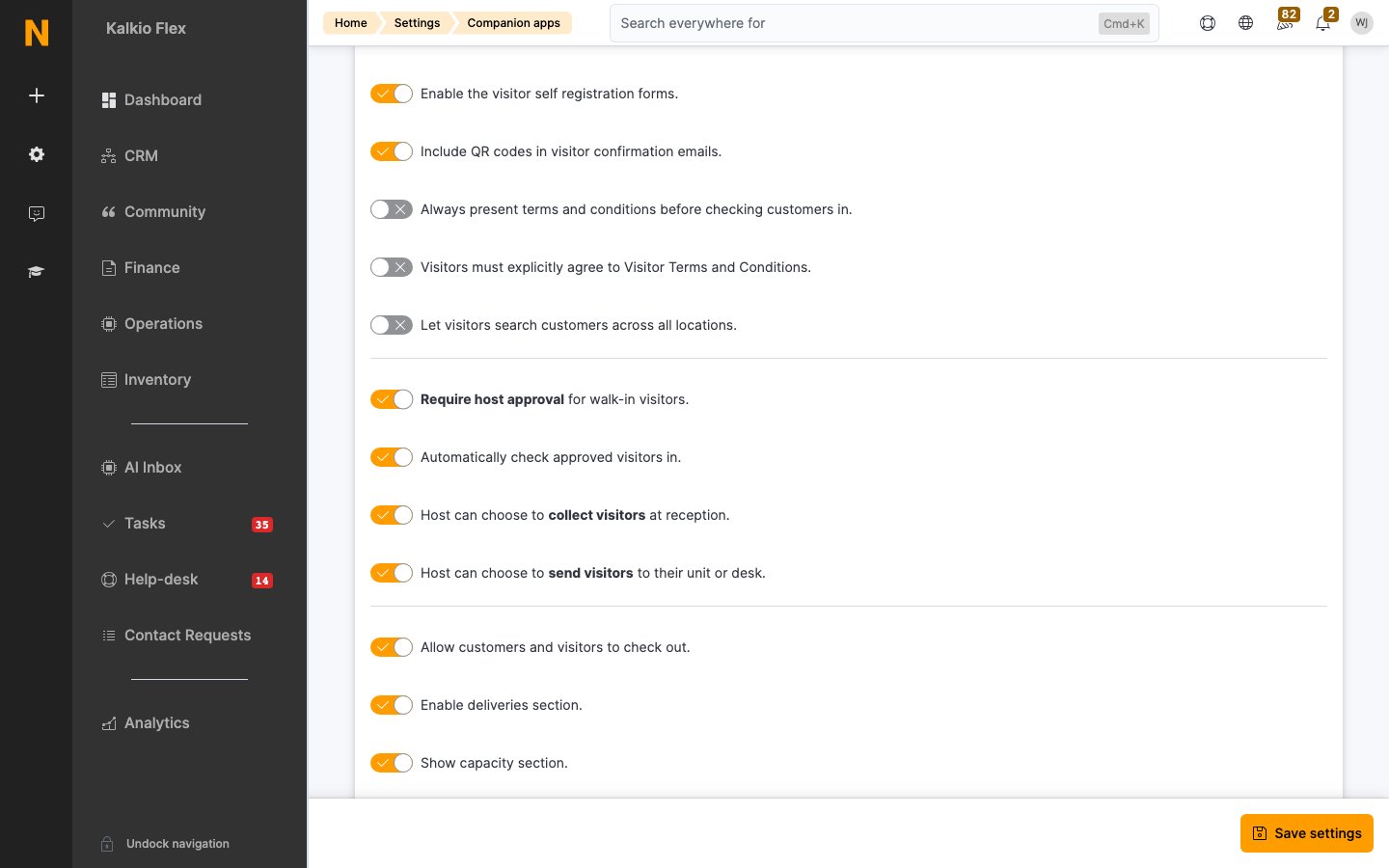
Visitor approval settings are found under Settings → Apps and integrations → Companion apps → NexIO.| Setting | Effect |
|---|---|
| Require host approval for walk-in visitors | Enables the approval flow. Walk-in visitors registered via NexIO receive a “Requested” status instead of “Not required”. |
| Automatically check approved visitors in | When enabled, an approved visitor is immediately checked in without staff intervention. |
| Host can choose to collect visitors at reception | Shows the “Accept — hold for collection” option in the approval email so the host can come to reception. |
| Host can choose to send visitors to their unit or desk | Shows the “Accept — grant access” option in the approval email so the visitor can proceed without escort. |
You can disable either the “collect at reception” or the “grant access” response option to simplify the host’s decision. If you disable both, only the reject option remains available.
When approval is triggered
Visitor approval is only triggered when all of the following are true:- The “Require host approval” setting is enabled for your location.
- The visitor is registered via NexIO (walk-in self-registration at a kiosk or front-desk tablet).
- A host (customer) is assigned to the visitor.
How the approval flow works
Visitor self-registers at NexIO
The visitor enters their details and selects a host at the NexIO kiosk. The visitor’s status is set to Requested.
Host receives an approval request
The system notifies the host through every channel you have enabled:
- Email — always sent. The email contains action buttons to approve or reject.
- WhatsApp — sent when the AI WhatsApp channel is enabled for the location and the host has a mobile number on their customer profile. See Visitor approval on WhatsApp.
- Mobile app push notification — sent to hosts who have the Passport mobile app installed and signed in.
- Accept — collect at reception: Host will come to get the visitor.
- Accept — grant access: Visitor can proceed to the host’s desk.
- Reject: Visitor is turned away.
Host responds
The host clicks one of the action links in the email, taps the Passport mobile app push notification, or replies to the WhatsApp message (with a number, a natural-language reply such as “approve Alex”, or “approve all” for multiple visitors). The visitor’s approval status is updated as soon as the host confirms the decision.
Visitor limits on plans
You can restrict how many visitors a customer can invite per day, week, or month by setting limits on their pricing plan. These limits are defined on each plan and enforced at the time a visitor is created:| Plan setting | Enforced when |
|---|---|
| Visitors per day | Visitor’s expected arrival falls on the same calendar day as the limit |
| Visitors per week | Visitor’s expected arrival falls in the same calendar week |
| Visitors per month | Visitor’s expected arrival falls in the same calendar month |
Visitor limits are cumulative across all active contracts — if a customer has two plans that both include visitor limits, the totals are summed.
Notification channels
Email approval request
The system always sends an email to the host with action buttons to approve or reject the visitor. This email includes:- The visitor’s name, company, and reason for visit
- Expected arrival time
- Action buttons for each available response option
WhatsApp approval
When the AI WhatsApp channel is enabled, hosts receive the approval request as a WhatsApp message and can reply with a number, in natural language, or process multiple visitors at once. See Visitor approval on WhatsApp for full setup and configuration.Mobile app push notification
Hosts who have the Passport mobile app installed receive a push notification and can approve or reject directly from the app.Best practices
- Enable approval for secure spaces where you need explicit host permission before granting visitor access.
- Use the “grant access” option to reduce front-desk workload — approved visitors can proceed directly to the host’s area.
- Encourage hosts to use WhatsApp for fastest response times, especially for mobile workers.
- Set visitor limits on plans to control how many guests members can invite and prevent abuse of the privilege.
- Review pending approvals regularly using the “Requested” status filter on the visitors list.
Related pages
Visitors
Main visitor management — registration, check-in, and lifecycle.
Visitor Approval on WhatsApp
Configure WhatsApp approval messages and let hosts respond conversationally.
NexIO
Configure the walk-in visitor self-registration kiosk.
Members & Contacts
Manage the customers who host visitors.