

Overview
If you use the WhatsApp AI agent, hosts can approve their walk-in visitors by replying to a WhatsApp message, as well as by email or in the app. The host gets a numbered list of answers and can reply with a number, or in their own words, such as “approve Alex, I’ll collect them”. This page covers the WhatsApp side. For how approval works overall, see Visitor approval.Before you start
A host is sent a WhatsApp message when all of these are true:
If any of these isn’t true, the host still gets the approval email and app notification, but no WhatsApp message.
Customise the message
Go to Settings → AI Assistants (preview) → Channels → WhatsApp and find Visitor approval message. It only appears once Enable WhatsApp AI agent is on.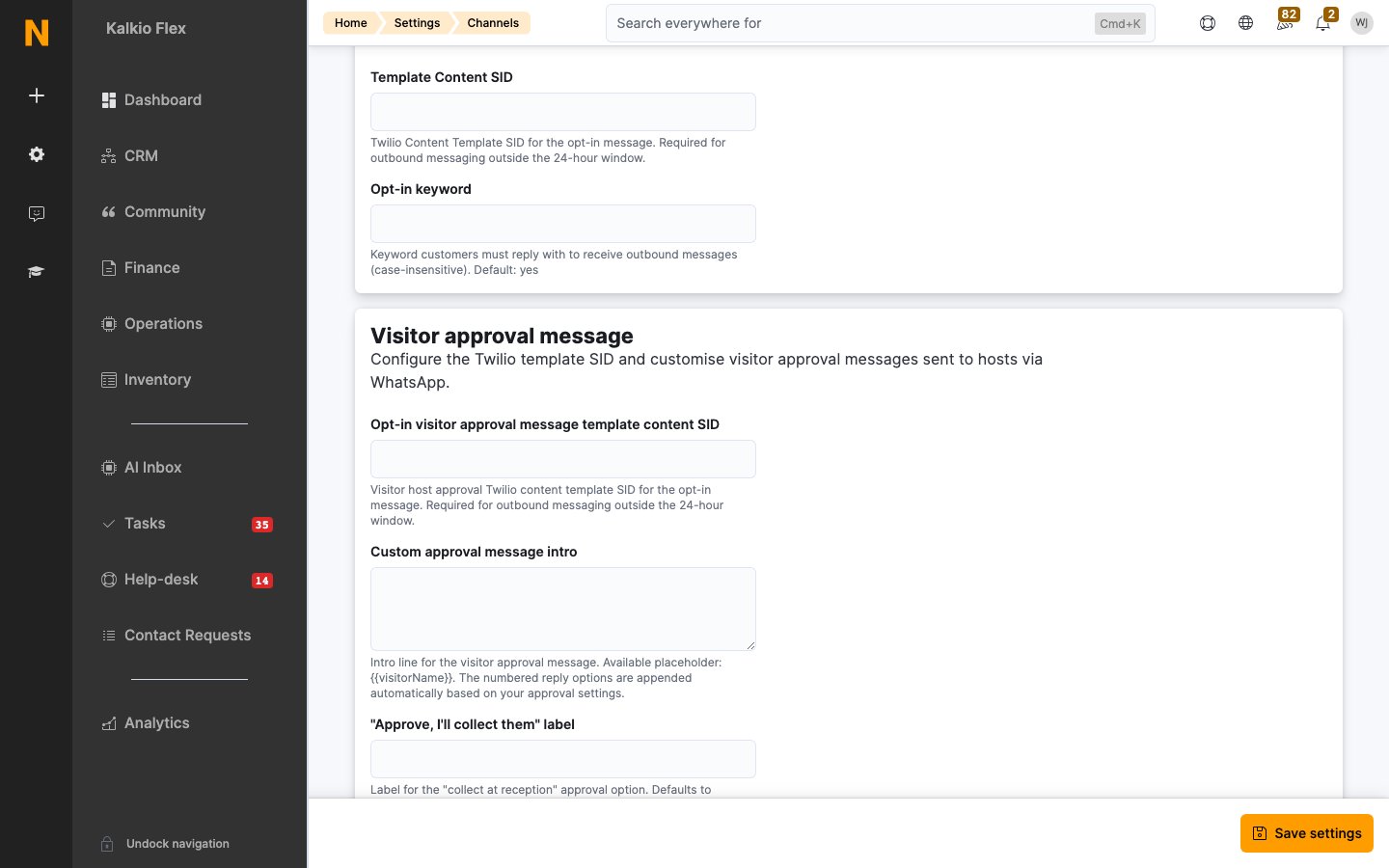
Leave a field empty to use the default wording. The two approve options only appear if you’ve allowed them in your visitor approval settings, and the options are numbered to match.
With the default wording, a host whose visitor Alex Smith is waiting receives:
Hi! {{visitorName}} is at reception. Reply with one of the options below., the host receives:
Reach hosts outside the 24-hour window
WhatsApp only lets you send a free-form message to someone who has messaged you in the last 24 hours. For anyone else, you must first send a template that Meta has approved. So when a host hasn’t messaged you recently, Nexudus:- Sends a template asking the host to reply with your opt-in keyword, for example
yes. - Sends the approval message, with its numbered options, once the host replies with the keyword.
- In your Twilio Console, create a content template, for example:
You have a visitor at reception: {{1}}. Reply YES to see your options.Nexudus fills in{{1}}with the visitor’s full name. - Submit it for Meta’s approval. Once it’s approved, copy its Content SID, which starts with
HX. - Paste it into Opt-in visitor approval message template content SID and save.
yes unless you change it, and isn’t case-sensitive.
How hosts reply
Hosts can reply:- With a number, matching the options in the message.
- By name, such as
approve Alex,reject Johnorapprove Maria and send her to my desk. - With just
approve, if only one visitor is waiting. If you allow both approve options, the AI asks which one they mean. - For everyone at once, with
approve all. - By asking, such as
any visitors?, to see who’s waiting.
- The visitor’s status changes to Hold for collection, Grant access or Rejected.
- Admins with Visitor registrations notifications turned on are emailed.
- If the host chose to send the visitor to their unit or desk, and Automatically check approved visitors in is on, the visitor is checked in.
Turn it off
- Stop WhatsApp approval messages only: turn off Enable WhatsApp AI agent, which also turns off the WhatsApp AI agent. Hosts still get the email and app notification.
- Stop visitor approval entirely: turn off Require host approval for walk-in visitors.
- Remove one of the approve options: turn it off in your visitor approval settings. It’s removed from the WhatsApp message too.
Costs
Messages are sent through your own Twilio WhatsApp number, so Twilio charges you for them at its WhatsApp rates.Troubleshooting
The host never receives a WhatsApp message
The host never receives a WhatsApp message
Check that:
- The host has a Cell / Mobile number on their customer record, with its country code.
- Enable WhatsApp AI agent is on.
- Require host approval for walk-in visitors is on, and NexIO is on Version 2.
- The visitor registered at NexIO. Visitors registered by your team or in the Members Portal don’t need approval.
- If the host hasn’t messaged you in the last 24 hours, an opt-in template SID is set.
The host gets the template but not the approval message
The host gets the template but not the approval message
The approval message is only sent after the host replies with the opt-in keyword. Ask them to reply with exactly that word, which is
yes unless you’ve changed it under Outbound messaging.The host replied but the visitor's status didn't change
The host replied but the visitor's status didn't change
The AI asks the host to confirm before it changes anything. Ask the host to check the AI’s last message: it’s probably waiting for them to confirm. If the visitor has already been approved or rejected on another channel, later answers are ignored.
The AI says it can't match the host's number
The AI says it can't match the host's number
The number the host is messaging from doesn’t match the Cell / Mobile number on their customer record. Update it, including the country code, and ask the host to reply again.
Related
Visitor approval
Turn on visitor approval and choose the answers hosts can give.
WhatsApp channel setup
Connect Twilio and set up your WhatsApp number.