

Overview
Tax rates decide how much tax is added to each line on an invoice, such as a 20% standard rate, a 5% reduced rate, or 0% for exempt customers. You create your rates once, then assign them to everything you sell in the chart of accounts.How to access
Go to Settings → Billing and payments → Invoices and tax and open the Tax tab.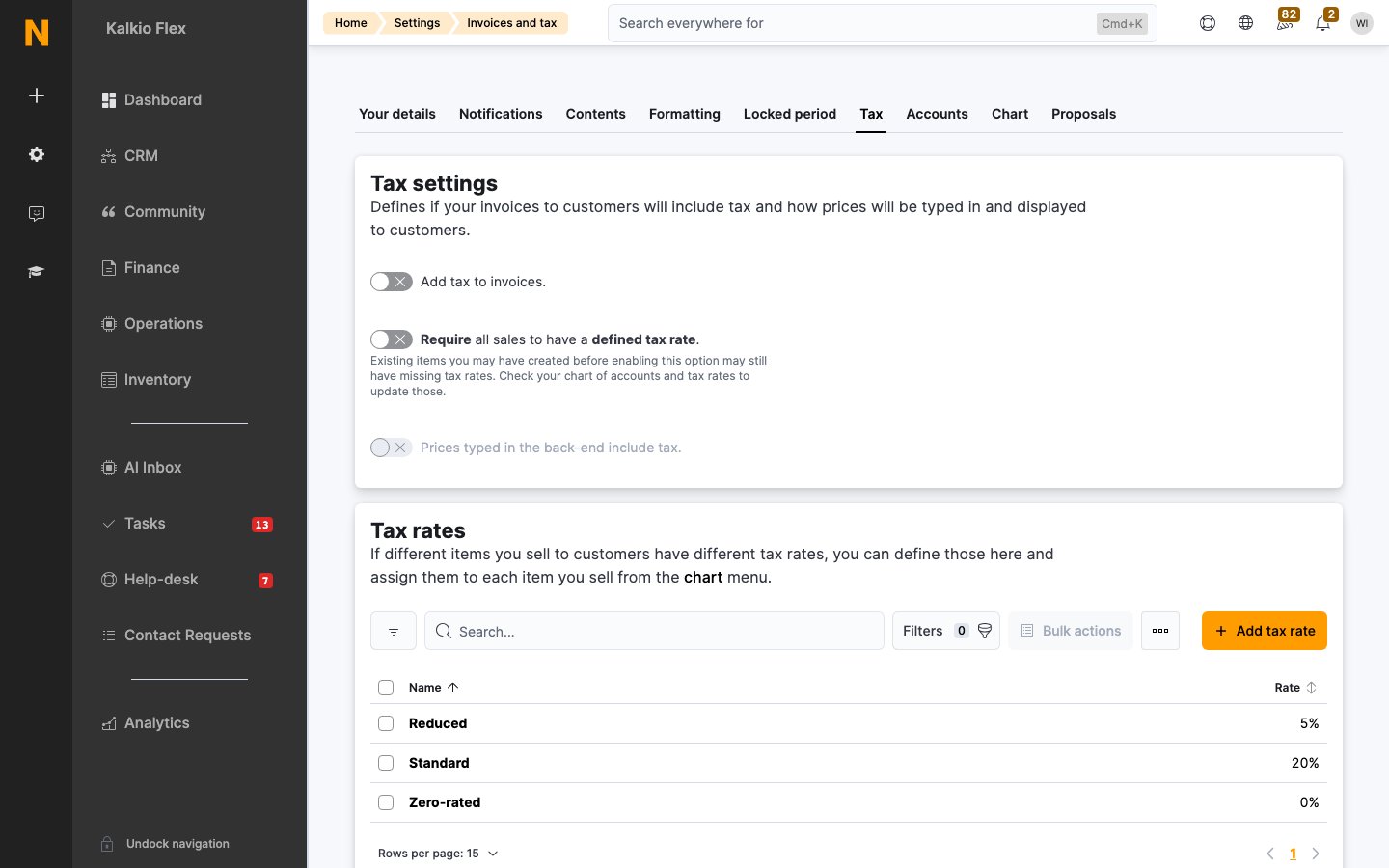
Tax settings
The display options and default tax rate appear once Add tax to invoices is on.
Add a tax rate
- On the Tax tab, under Tax rates, select Add tax rate.
- Enter a Name, such as “Standard” or “VAT”, and the Rate as a percentage.
- Save.
Standard, reduced and exempt rates
Each item you sell can have up to three tax rates:- Tax: the standard rate, used for most customers.
- Reduced Tax: used for customers whose Tax type is Reduced.
- Exempt Tax: used for customers whose Tax type is Exempt, such as charities.
Personal tax rates
To charge one customer a specific rate on everything they buy, enter it as their Personal tax rate in the same section of their record.A personal tax rate overrides every other rate, including the rates set on individual items.
Which rate is used
When Nexudus invoices an item, it uses the first of these that applies:- No tax, if Add tax to invoices is off.
- The customer’s Personal tax rate.
- The item’s Reduced Tax or Exempt Tax rate, if the customer’s Tax type is Reduced or Exempt and the item has that rate.
- The item’s Tax rate.
- Your Default tax rate.
Change or delete tax rates
Changing a tax rate, the default rate or a customer’s tax settings only affects future invoices. To change the tax on an invoice that’s already been issued but isn’t paid yet, open the invoice, edit each line, and choose a different Tax Rate. Paid invoices can’t be changed. See Invoices. You can’t delete a tax rate while items still use it. Remove it from those items in the chart of accounts first.Related
- Chart of accounts: assign tax rates to everything you sell
- Financial accounts: the income categories on each invoice line
- Invoices: where tax rates appear