

Overview
The chart of accounts lists everything you sell and lets you choose, for each item, the financial account its income goes to and the tax rates it’s charged at. Set up your accounts and tax rates first, then assign them here.How to access
Go to Settings → Billing and payments → Invoices and tax and open the Chart tab.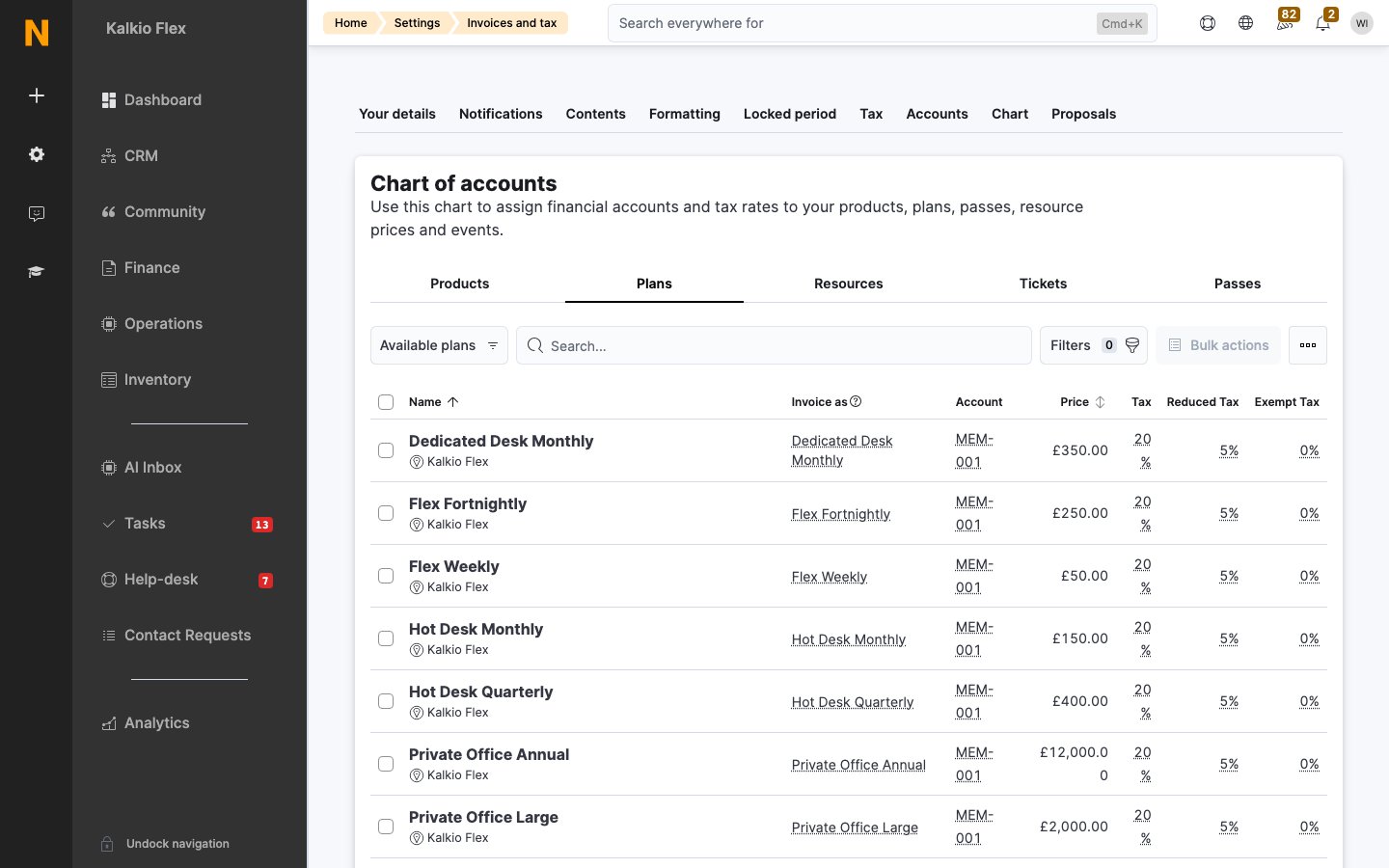
Assign accounts and tax rates
The chart has a tab for each type of item: Products, Plans, Resources, Tickets and Passes. For each item:- Select the Account and choose a financial account.
- Select Tax and choose the standard tax rate.
- Optionally, choose a Reduced Tax and Exempt Tax rate for customers whose tax type is reduced or exempt. See Standard, reduced and exempt rates.