

Overview
Customers usually book in the Members Portal or app, but you can book for them from the dashboard, block time without billing anyone, and change any booking. This page covers the booking form and its tabs.Create a booking
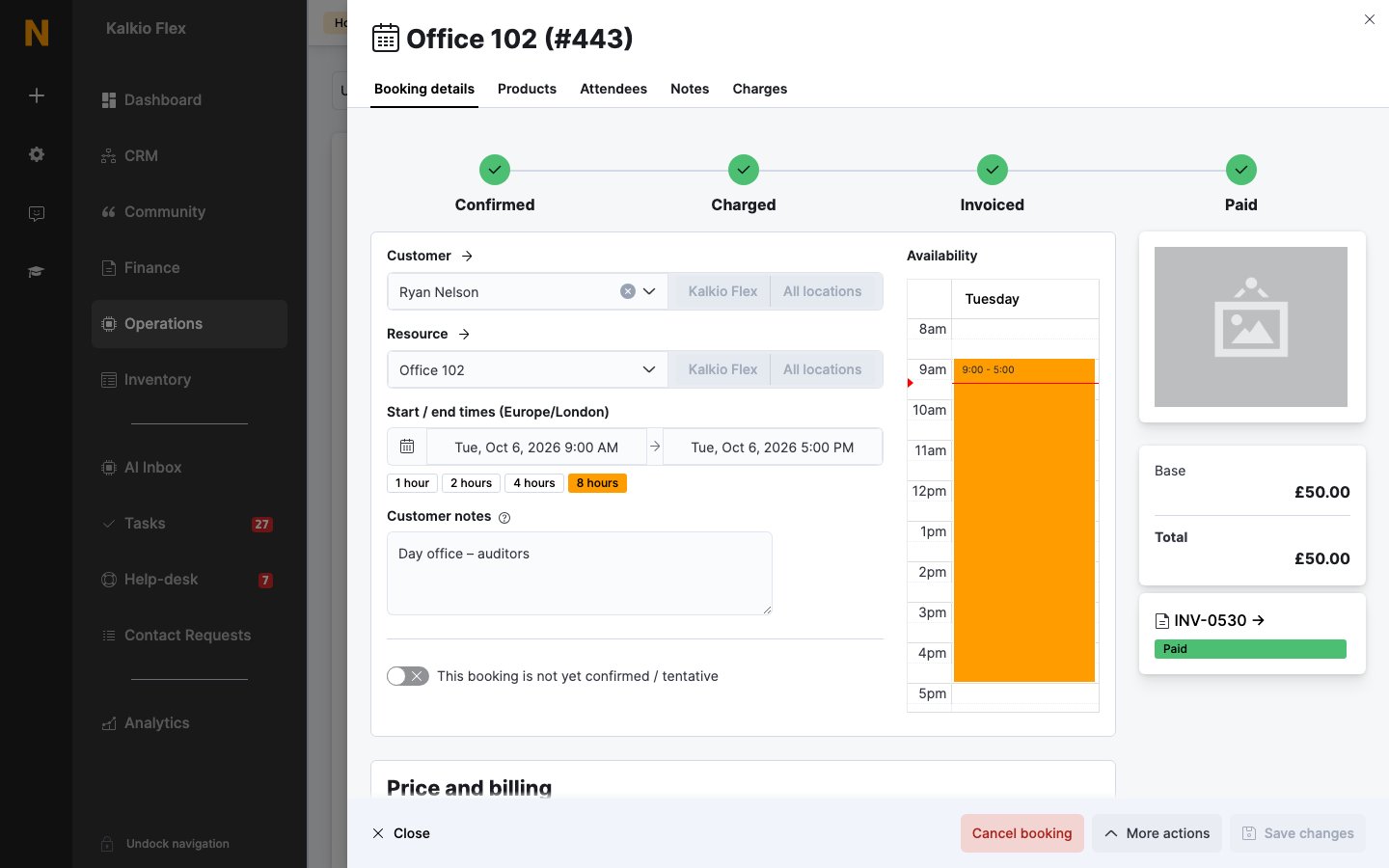
- Go to Operations → Bookings → Calendar and click an empty slot, or go to Operations → Bookings → List and select Add booking.
- Choose the Customer. Leave it empty to block time without billing anyone.
- Choose the Resource.
- If the resource has units, such as desks in a hot-desking area, choose a Desk / unit, or leave it empty to have Nexudus assign the next available one.
- Set the Start / end times, or use the 1 hour, 2 hours, 4 hours or 8 hours shortcuts. The times are in your location’s time zone. A day view next to the form shows the resource’s other bookings so you can spot clashes.
- Check the Price and billing section. See Price and billing.
- Add Customer notes, which the customer can see, or Internal notes, which they can’t.
- Save.
Price and billing
Nexudus works out the best price for the customer, resource and times you’ve chosen, and uses any credit the customer has. See Booking pricing and credit.
A price breakdown shows the Base price, Products, any Dynamic Adj, Credits used and the Total.
Repeat bookings
Under Repeat booking, choose how often the booking repeats instead of This booking does not repeat:- Every n days, weeks, months or years. For weekly bookings, choose the days of the week under Repeat on these days of the week.
- The first, second, third, fourth or last weekday of the month, for example the first Monday of each month.
Edit a booking
Open the booking, change what you need and save. Customers are notified when the date or time changes. Once a booking has been charged, its price fields are locked. To change the price, select Remove booking charges in the Price and billing section first. Once it’s on an invoice, changing or cancelling the booking doesn’t change the invoice. See Approve and cancel bookings. You can also drag a booking on the calendar to move it to another time or resource, or drag its edge to change its length. Nexudus asks you to confirm the change.Edit a repeat booking
When you save a booking that’s part of a series, choose which bookings to change:- Update only this booking
- Update this booking and all bookings after this one
- Update all bookings in the series
- Update only bookings which have not yet been charged to the customer
Add products to a booking
On the booking’s Products tab, choose a product from Add product to booking, set the Quantity and save. Only products linked to the resource are available. To link products, see Sell products with bookings. The products are charged with the booking, and are included in its price breakdown.Attendees and check-in
The Attendees tab lists the booking’s guests. Nexudus sends each guest a copy of the meeting invite and a notification, if guest confirmations are on. To add guests:- Add visitor: enter the guest’s Full name and Email. If you don’t have their email address, use
[email protected]. - Bulk import: paste a list of guests, one per line, such as
Ada Lovelace <[email protected]>. - Add existing customer: choose one of your customers.